Text Editing > Editors
Find it under Settings > Application > Text Editing > Editors.
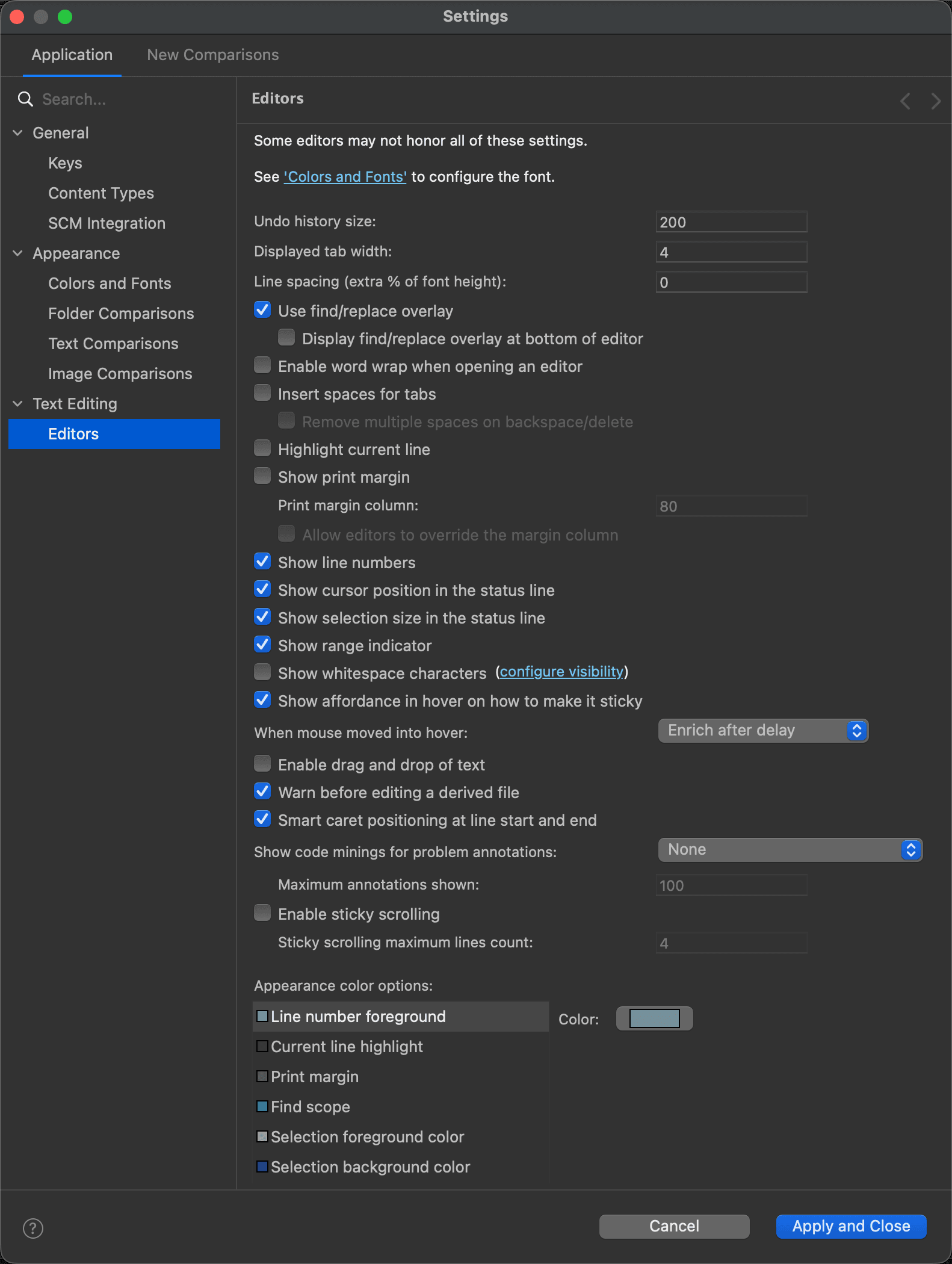
This page lets you customize the following settings of the text editors:
| Setting | Description | Default |
|---|---|---|
| Undo history size | This option does not apply to DeltaWalker Classic, whose undo and redo are unlimited in size and linked. | 200 |
| Displayed tab width | The width of a tab in the text editors, in spaces. If a tab is a tab character (see Insert spaces for tabs below), this affects only how wide a tab looks. If tabs are inserted as spaces, this is the number of spaces inserted. | 4 |
| Line spacing (extra % of font height) | Extra space between the lines of the text editors, as a percentage of the height of the font. | 0 |
| Use find/replace overlay | When on, find and replace is offered in a bar over the editor instead of in a dialog. | On |
| Display find/replace overlay at bottom of editor | When on, the find/replace bar is shown at the bottom of the editor instead of the top. | Off |
| Enable word wrap when opening an editor | When on, an editor wraps long lines as soon as it opens. The text editors of comparisons follow Appearance > Text Comparisons > Wrap long lines. | Off |
| Insert spaces for tabs | When on, every tab you type or paste is replaced by the number of spaces set in Displayed tab width. Tabs already in the text are not affected. | Off |
| Remove multiple spaces on backspace/delete | When on, Backspace and Delete remove as many spaces as make up a tab at once, when the spaces stand in for a tab. | Off |
| Highlight current line | When on, the text editors highlight the line with the insertion point. | Off |
| Show print margin | When on, the text editors show the print margin. | Off |
| Print margin column | The column of the print margin. | 80 |
| Allow editors to override the margin column | When on, an editor may use a print margin column of its own. | Off |
| Show line numbers | When on, line numbers are shown on the left side of the text editors. | On |
| Show cursor position in the status line | When on, the status line shows the line and column of the insertion point. | On |
| Show selection size in the status line | When on, the status line shows the size of the selection. | On |
| Show range indicator | When on, the text editors show range indicators. | On |
| Show whitespace characters | When on, whitespace characters (spaces, tabs, carriage returns and line feeds) are visible. Click configure visibility to choose which of them are shown, and where in a line. | Off |
| Show affordance in hover on how to make it sticky | When on, a hover says how to make it stay open. | On |
| When mouse moved into hover | What happens when you move the mouse into a hover: Close hover, Enrich immediately, Enrich after delay or Enrich on click. | |
| Enable drag and drop of text | When on, you can drag and drop text within the text editors. | Off |
| Warn before editing a derived file | When on, the editors warn you before you edit a file that is marked as derived. | On |
| Smart caret positioning at line start and end | When on, Home and End first move the insertion point to the first and last character of the line that is not whitespace. | On |
| Show code minings for problem annotations | How problem annotations are shown in line in editors that support code minings: None, Errors only, Errors and Warnings or Errors, Warnings and Infos, with Maximum annotations shown limiting how many. | |
| Enable sticky scrolling | When on, the editors keep the lines that start the current block visible at the top as you scroll; Sticky scrolling maximum lines count limits how many. | Off / 4 |
| Appearance color options | The colors of the text editors: line number foreground, current line highlight, print margin, find scope, selection foreground and background, and background and foreground. Select one, then choose its Color, or check System Default where offered. More colors are on the Colors and Fonts page. |
The page
See Also
Last updated on