Text Editing
Find it under Settings > Application > Text Editing.
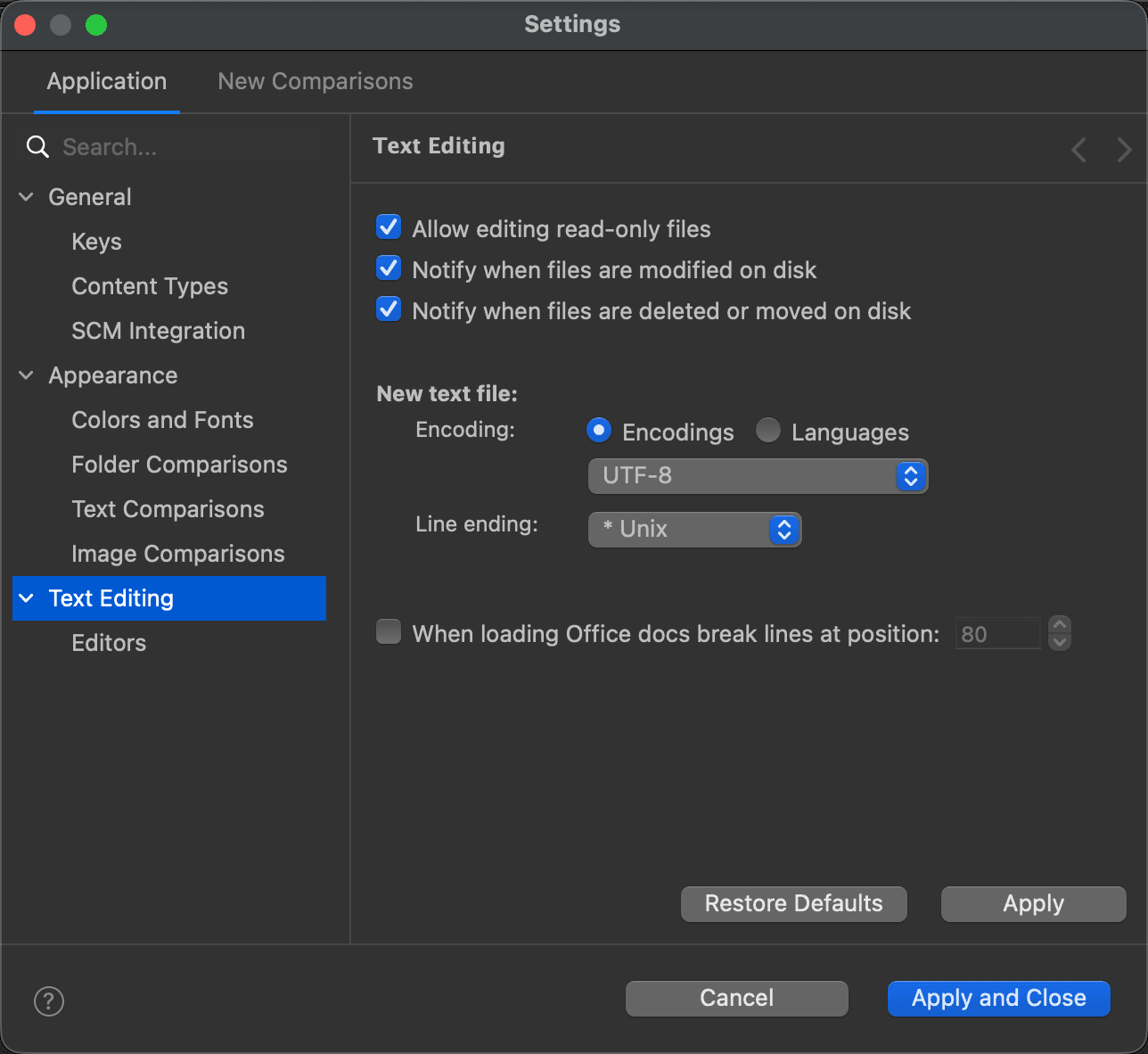
Use this page to customize how files are edited in DeltaWalker Classic. The options of the text editors themselves are on the Text Editing > Editors page.
| Setting | Description | Default |
|---|---|---|
| Allow editing read-only files | When on, you can edit read-only files in the text editors; before saving, you are still asked to confirm overwriting a read-only file. When off, the text editors of read-only files cannot be edited. | On |
| Notify when files are modified on disk | When on, DeltaWalker Classic tells you when another application modifies a file that is open for comparison, and lets you reload it. Note: Reloading a file you have also changed in DeltaWalker Classic discards those changes. |
On |
| Notify when files are deleted or moved on disk | When on, DeltaWalker Classic tells you when a file that is open for comparison is deleted or moved by another application. | On |
| New text file: Encoding | The character encoding of new text files created in DeltaWalker Classic. Choose Encodings to pick an encoding, or Languages to pick a language. Unless you choose another encoding when you save the new file, it is saved with this one. | UTF-8 (on macOS); the system's default encoding (on Windows and Linux) |
| New text file: Line ending | The line ending (line delimiter) of new text files created in DeltaWalker Classic. | Windows (on Windows); Unix (on macOS and Linux) |
| When loading Office docs break lines at position | When on, DeltaWalker Classic inserts line endings at the given position (column) when it loads Microsoft Office documents, such as Word, Excel and PowerPoint files. This keeps long paragraphs from running beyond the width of the editor and makes them easier to compare. PDF documents do not need it: their text already comes in lines. Note: Use it with caution, as it uses a lot of processor time and memory. |
Off / 80 |
The page
See Also
Last updated on