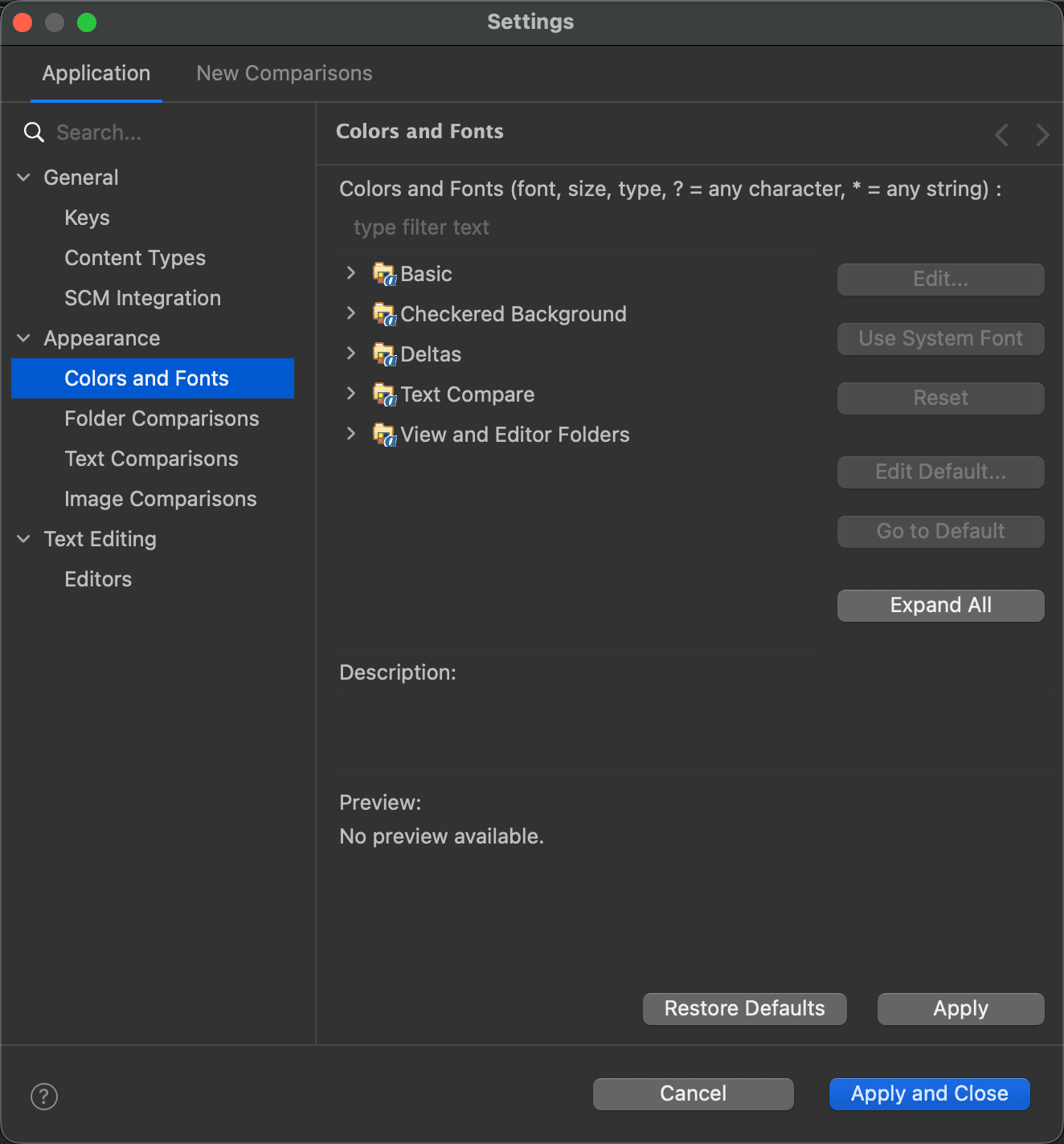
Appearance > Colors and Fonts
Find it under Settings > Application > Appearance > Colors and Fonts.
This page lets you change most of the colors and fonts DeltaWalker Classic uses.
The tree in the middle of the page lists the colors and fonts you can change, by category. Under Deltas are the colors of additions, deletions, changes and conflicts, and the font of the text and folder comparison windows; under Checkered Background are the two colors of the background of image comparisons. The label of a font shows its current face (but not its size), and the icon next to a color shows the color.
To change one, select a color or a font, then click Edit… to choose another, or, for a font, Use System Font to use the font of the operating system. Reset sets the selected color or font back to its default.
Type in the field above the tree to show only the colors and fonts whose names match.
When you select a color or a font, its description, and a preview where one is available, appear below the tree.
The page