Select Remote File Dialog
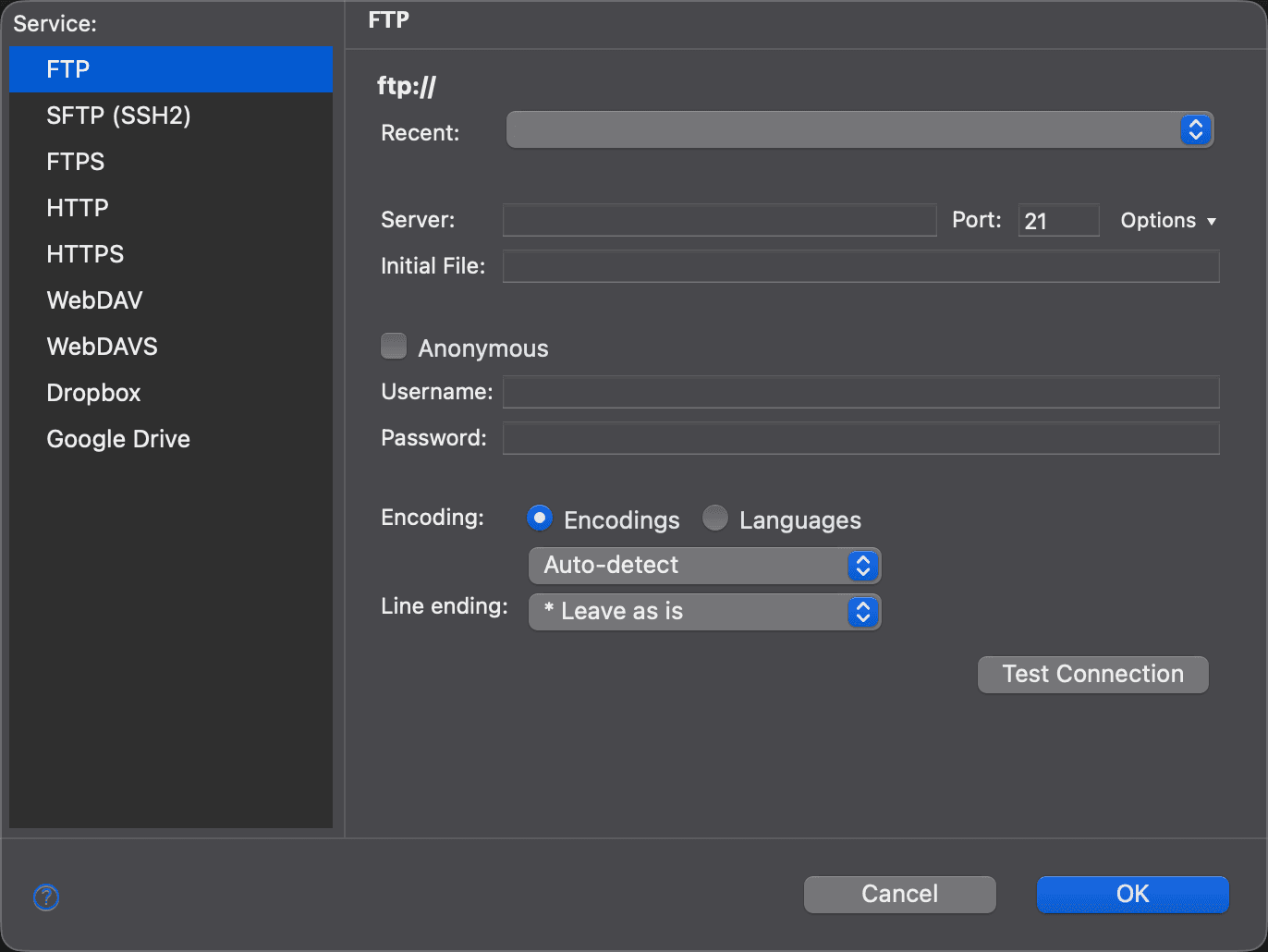
Use the Select Remote File dialog to open a file on a server or in cloud storage for comparison. Rather than typing a Uniform Resource Identifier (URI), you enter its parts—protocol, server, port, path and credentials—separately, and the dialog puts them together for you. The resulting URI, shown at the top of the dialog, is what DeltaWalker Classic uses to locate and load the file. It conforms to the URI specification. For your protection, the URI never shows the password.
When you save a file with File > Save As Remote…, the same dialog opens for saving, titled after the side, for example Save Reference File As.
Remote locations are not available in DeltaWalker Classic Free. Dropbox and Google Drive are available in DeltaWalker Classic Pro and Oro, and during the trial.
Protocols
Pick the protocol in the Service list on the left of the dialog:
- FTP
- SFTP (SSH2)
- FTPS
- HTTP and HTTPS—for opening only, as files cannot be saved over these protocols
- WebDAV and WebDAVS
- Dropbox and Google Drive—click Authorize to give DeltaWalker Classic access to your account in your web browser; Deauthorize withdraws it. OK stays disabled until the authorization succeeds.
Controls
| Control | Description |
|---|---|
| Recent | Fills in the dialog from a remote location you have used before. |
| Server | The host to connect to, for instance deltopia.com. Don’t type the protocol; DeltaWalker Classic adds it. |
| Port | The port to connect to. Each protocol fills in its default port. |
| Options | For FTP, FTPS and SFTP: Passive Mode (FTP and FTPS), Explicit Mode (FTPS) and User Directory is Root. |
| Initial File | The path to the file on the server. |
| Anonymous | Connects without a username and password. |
| Username, Password | Your credentials on the server. |
| SSH | For SFTP: Select Key… to use an SSH private key, Specify Passphrase… for the key’s passphrase, and Clear Settings. |
| Encoding | The character encoding to open or save the file with. |
| Line ending | The line endings to open or save the file with. |
| Test Connection | Connects to the server to check the settings before you click OK. |
Similarly to the Select File dialog, the Encoding and Line ending choosers let you set the character encoding and the line endings when you open or save the file.
Appearance
Access

Click the small arrow to the right of the  button in the path entry field, then choose Open Remote File….
Keyboard Shortcut
Cmd+Shift+O, or File > Open Remote…, when a file comparison window is active. Cmd+O opens the Select Remote File dialog when the side that has the input focus shows a remote file, or when you last opened a remote one.