Appearance > Folder Comparisons
Find it under Settings > Application > Appearance > Folder Comparisons.
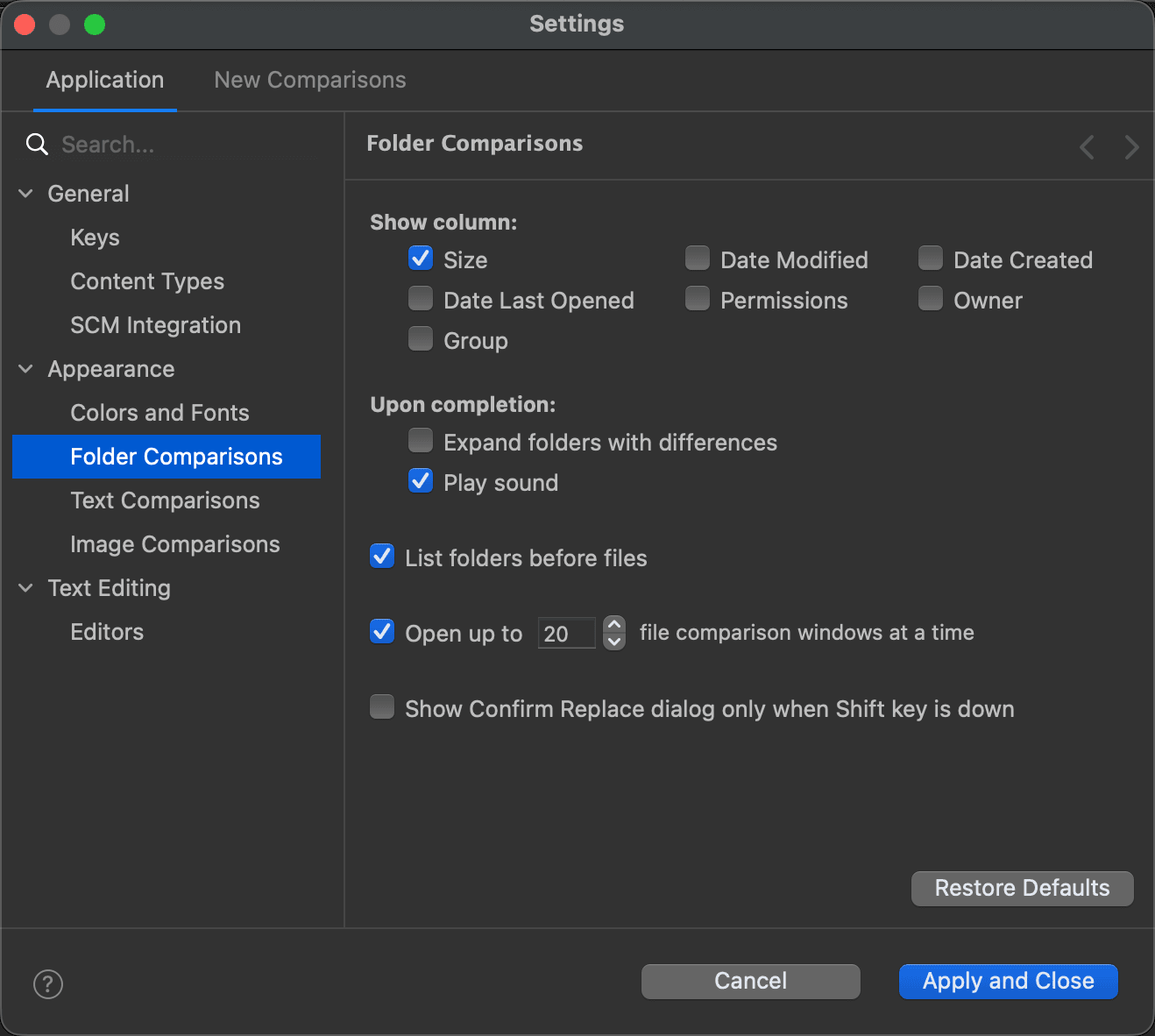
Use this page to customize the following display settings of folder comparisons:
| Setting | Description | Default |
|---|---|---|
| Show column: Size | When on, the folder comparison window shows its Size columns. | On |
| Show column: Date Modified | When on, the folder comparison window shows its Date Modified columns. | Off |
| Show column: Date Created | When on, the folder comparison window shows its Date Created columns. Accurate information requires Collect extended resource attributes to be on, on the Folder Comparisons page of the New Comparisons tab. | Off |
| Show column: Date Last Opened | When on, the folder comparison window shows its Date Last Opened columns. Accurate information requires Collect extended resource attributes to be on, on the Folder Comparisons page of the New Comparisons tab. | Off |
| Show column: Permissions (Attributes on Windows) | When on, the folder comparison window shows its Permissions columns (Attributes on Windows). | Off |
| Show column: Owner | When on, the folder comparison window shows its Owner columns. Accurate information requires Collect extended resource attributes to be on, on the Folder Comparisons page of the New Comparisons tab. | Off |
| Show column: Group | When on, the folder comparison window shows its Group columns. Accurate information requires Collect extended resource attributes to be on, on the Folder Comparisons page of the New Comparisons tab. | Off |
| Upon completion: Expand folders with differences | When on, DeltaWalker Classic expands every folder with changed, added or deleted items when a folder comparison finishes, so you can see the differences right away. | Off |
| Upon completion: Play sound | When on, DeltaWalker Classic plays a sound when a folder comparison finishes. | On |
| List folders before files | When on, folders are listed before files, whatever the column the window is sorted by, as in Windows File Explorer and Linux file managers such as Nautilus. When off, folders and files are sorted together, as in the macOS Finder by default. | On |
| Open up to ... file comparison windows at a time | When on, limits the number of file comparison windows that Open Selected for Comparison, on the context menu of a folder comparison, opens at once. This keeps you from locking up DeltaWalker Classic by opening too many files at once. | On / 20 |
| Show Confirm Replace dialog only when Shift key is down | When on, the Confirm Replace dialog of synchronization operations appears only when you hold down the Shift key as you start the operation. | Off |
The page
See Also
- Appearance
- Folder Comparisons: what is compared, and how.
- Appearance > Text Comparisons
Last updated on