Appearance > Image Comparisons
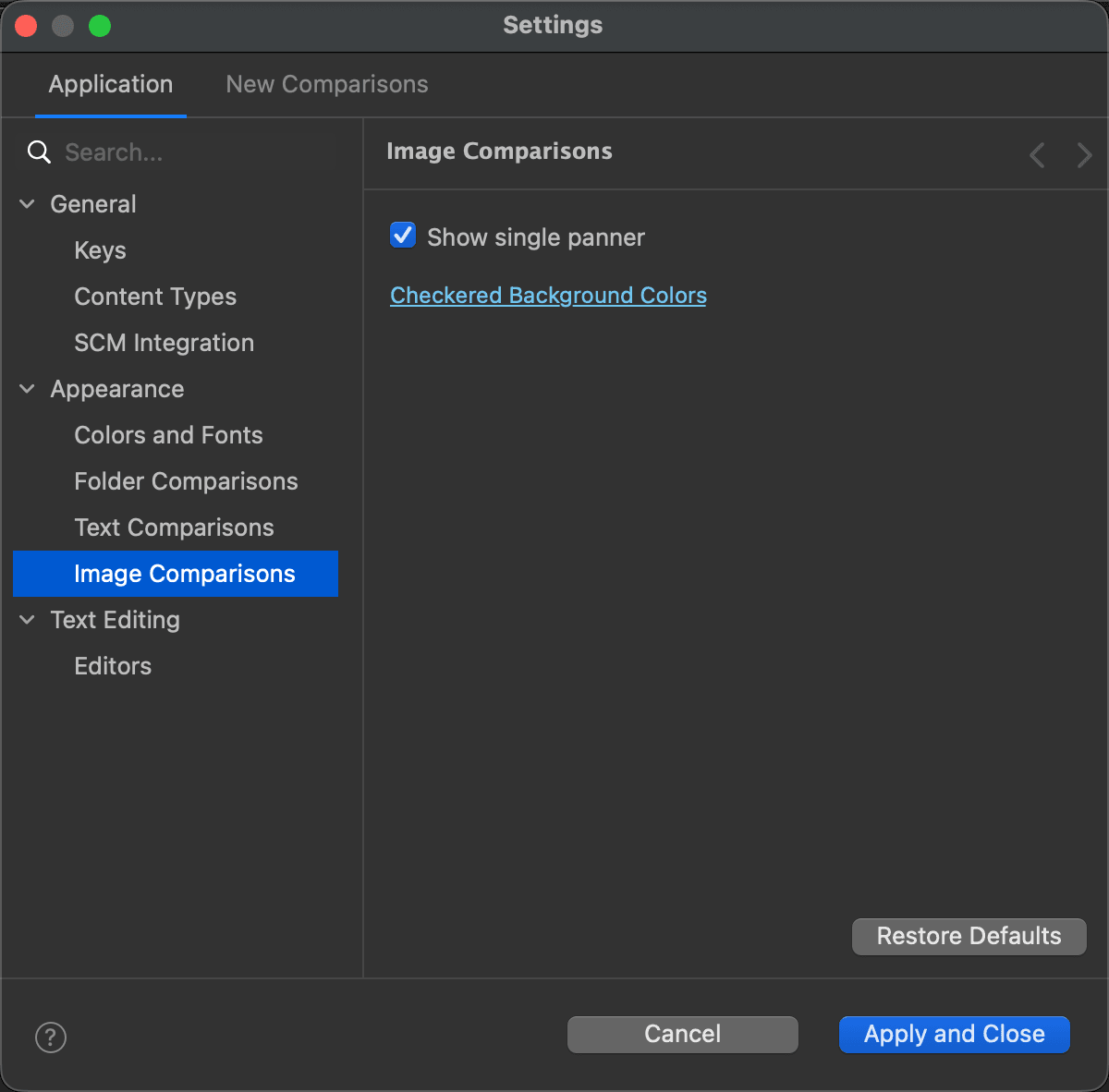
Find it under Settings > Application > Appearance > Image Comparisons.
Use this page to change the following settings of image comparisons:
| Setting | Description | Default |
|---|---|---|
| Show single panner | Controls the number of panners, the thumbnail-size image navigators. When on, there is one panner, in the right-most image. Turn it off to have a panner in every image. | On |
| Checkered Background Colors | Click this link to go to the Colors and Fonts page, where you can choose the two colors of the checkered background. The default colors, white and gray, work well for most images; for images rich in these two colors, you may want to choose others. |
The page
See Also
Last updated on