Folder Comparison Attribute Filter Dialog
Use an attribute filter to include files and folders in a folder comparison, or to exclude them from it, based on one of their attributes, for example to leave hidden files out. To create one, go to Folder Comparisons > Filters, click New, and choose Attribute. To change one, select it and click Edit.
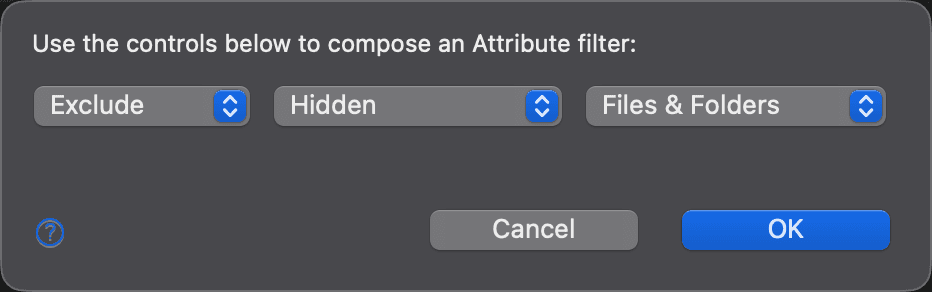
The dialog reads “Use the controls below to compose an Attribute filter:”, followed by three drop-down lists:
| Control | Description |
|---|---|
| Action | Exclude or Include the items that have the attribute. New filters start with Exclude. |
| Attribute | The attribute to filter on. On macOS and Linux: Hidden, Writable, Executable, Symbolic Link, and Readable. On Windows: Hidden, Read-only, Executable, Symbolic Link, Readable, Archive, and System. New filters start with Hidden. |
| Target | Whether the filter applies to Files & Folders, Files, or Folders. New filters start with Files & Folders. When you choose Executable, the filter applies to files only. |
For example, Exclude Hidden Files & Folders leaves all hidden files and folders out of the comparison.
Click OK to save the filter.
Appearance
See Also
Last updated on