Appearance
Find it under Settings > Application > Appearance.
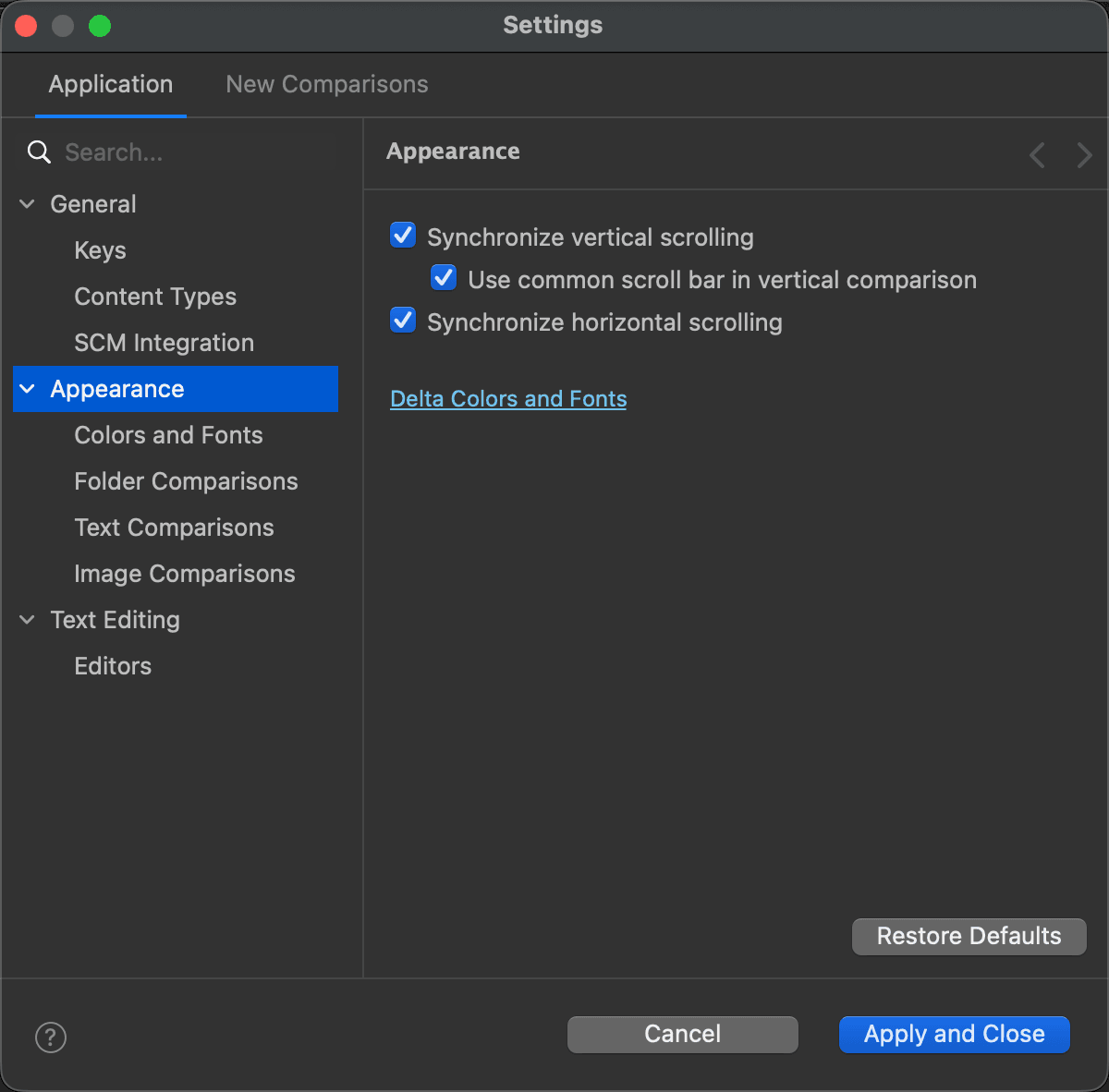
The Appearance page holds the settings that decide how comparison windows scroll, and leads to the colors and fonts. The pages under it set how folder, text and image comparisons look. The settings below apply to both file and folder comparisons:
Preference | Description | Default |
Synchronize vertical scrolling | Check this option to have the file and folder comparison content areas—text editors and trees—move together when scrolled vertically. | On |
Use common scroll bar in vertical comparison | Select this option to have a single common scroll bar for the text editors in a two- or three-way vertical file comparison. Available only when Synchronize vertical scrolling is on. | On |
Synchronize horizontal scrolling | Check this option to have the file and folder comparison content areas—text editors and trees—move together when scrolled horizontally. | On |
Delta Colors and Fonts | Click this link to go to the Colors and Fonts page, where you choose the colors and fonts DeltaWalker Classic uses. |
The page
Pages under Appearance
See Also
- Settings overview
- General: sounds, alerts, history and more.