General > Content Types
Find it under Settings > Application > General > Content Types.
Use this page to tell DeltaWalker Classic how to treat files with certain extensions.
DeltaWalker Classic looks at the first several hundred bytes and the extension of a file to determine its content type. Once it knows the content type of the files in a comparison, it can decide how best to compare them. For instance, it opens JPEG files as images and compares them as such, so you do not have to tell it what to do with them. Given the huge variety of file formats, no content type detection is perfect. This page lets you tell DeltaWalker Classic what to do with files whose content type it does not recognize, or does not detect correctly.
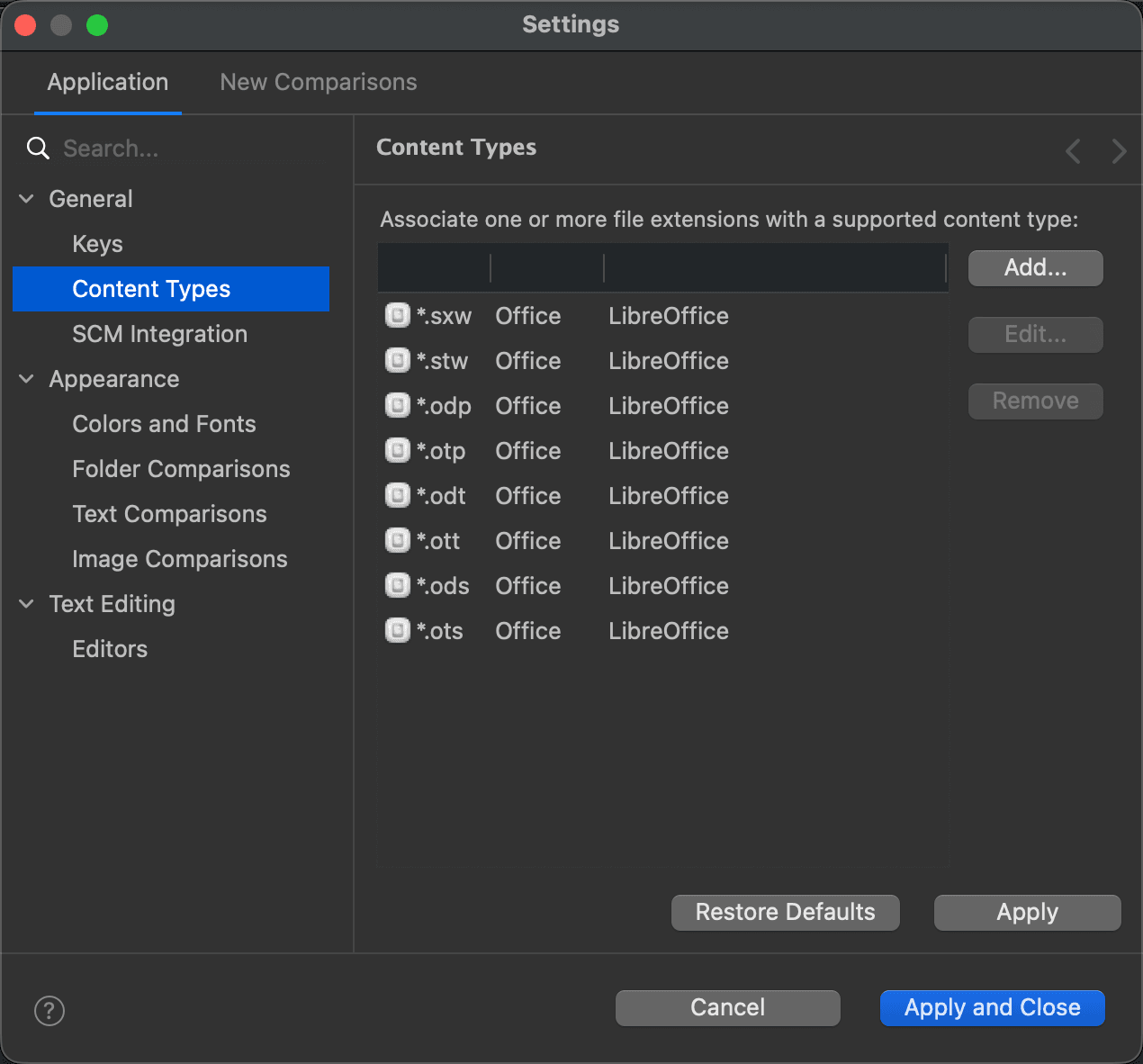
The table lists the file extensions that DeltaWalker Classic has been told to treat as a certain content type, with their Type and what they are Associated with. Use Add… to associate another extension with a content type, Edit… to change the association of the selected extension, and Remove to delete it. Restore Defaults brings back the list DeltaWalker Classic ships with.
The page
Known Content Types
You can associate an extension with the following content types:
- Text - opened as text in the text editors.
- Binary - compared byte by byte; if their size allows, they can also be shown as text.
- Image - shown and compared as images in the image comparison window.
- HTML - compared as text, which they are. In addition, a second tab renders HTML files with a built-in browser, showing them the way they would look in a browser.
- XML - compared as text, with the Prettify XML and Canonicalize XML commands at hand.
- Archive - zip, jar and other archive formats are shown and compared as folder structures.
- Office - Microsoft Office documents; their text is extracted and compared in a file comparison window.
- PDF - PDF documents; their text is extracted and compared, as with Office documents.
Files identified as binary are compared byte by byte regardless of their size. Comparing byte by byte is much faster and uses less memory than comparing as text.