How Do I Traverse Between Windows Using the Keyboard?
In DeltaWalker Classic, file comparison windows are often referred to as editors, and folder comparison windows as views. By design, editors and views don’t mix.
You will often need to move between the open editors. Here are the ways to do it using only the keyboard:
- Cmd+F6 to go to the next editor
- Cmd+Shift+F6 to go to the previous editor
- Cmd+Shift+E to bring up the Switch to Editor dialog
- Cmd+E to bring up the Quick Switch Editor popup
The Quick Switch Editor popup is a particularly handy way of getting to a file comparison window when you have many comparisons open. With dozens of editors open, start typing the first letters of the file comparison window’s name as listed in the popup, and only the editors whose names start with those letters are shown.
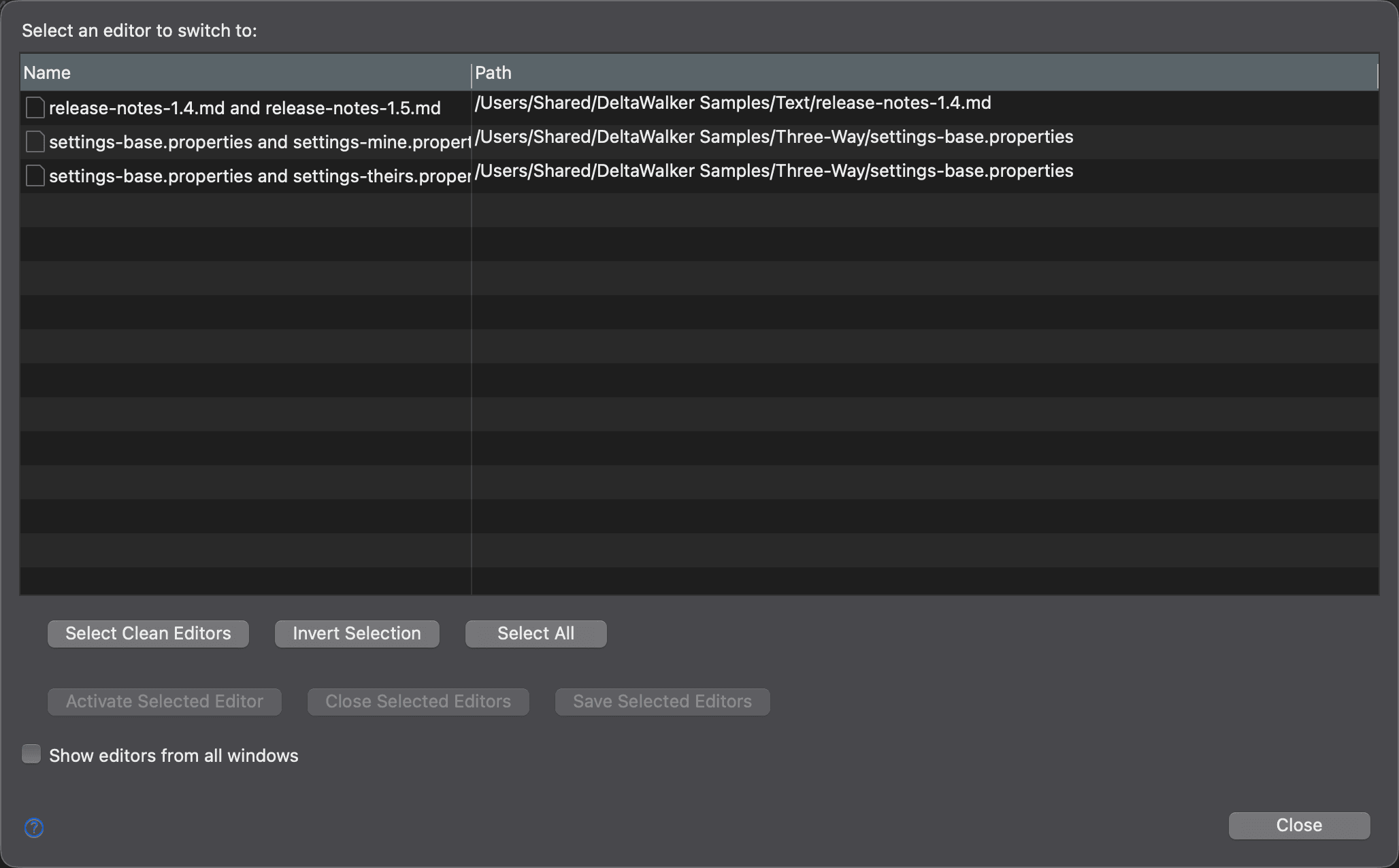
The Switch to Editor dialog, shown below, lets you activate, close or save several file comparison windows at once:
Switching Between Text Editors in a Comparison Window
To move between the text editors or folder trees and the file or folder selectors of a comparison window, use:
- Ctrl+Tab to move forward
- Ctrl+Shift+Tab to move backward
To make the Tab key insert spaces instead of tab characters, turn on Insert spaces for tabs on the Text Editing > Editors settings page.