Confirm Multiple File Delete Dialog
When you delete files or folders in a folder comparison, for example with Delete Selected… in the context menu, DeltaWalker Classic asks you to confirm which items to delete. Depending on what you delete, the dialog is titled Confirm Multiple File Delete, Confirm File Delete, or Confirm Permanent Delete.
The dialog lists the items under the folder they belong to, such as First and Second. You can select or clear each item, or a whole folder at once.
| Control | Description |
|---|---|
| Select All | Selects all files and folders in the list. |
| Deselect All | Clears all files and folders in the list. |
| Delete | Deletes the selected files and folders. |
| Don’t Delete | Cancels the deletion and closes the dialog. |
On macOS and Windows, DeltaWalker Classic moves the deleted items to the Trash and the Recycle Bin respectively, and the dialog asks whether to move them there. On Linux, and for items in remote locations, archives, and snapshots, it deletes them permanently. In that case the dialog is titled Confirm Permanent Delete and warns that the items cannot be recovered. If only some of the items can go to the Trash, the dialog tells you that the others will be permanently deleted.
Appearance
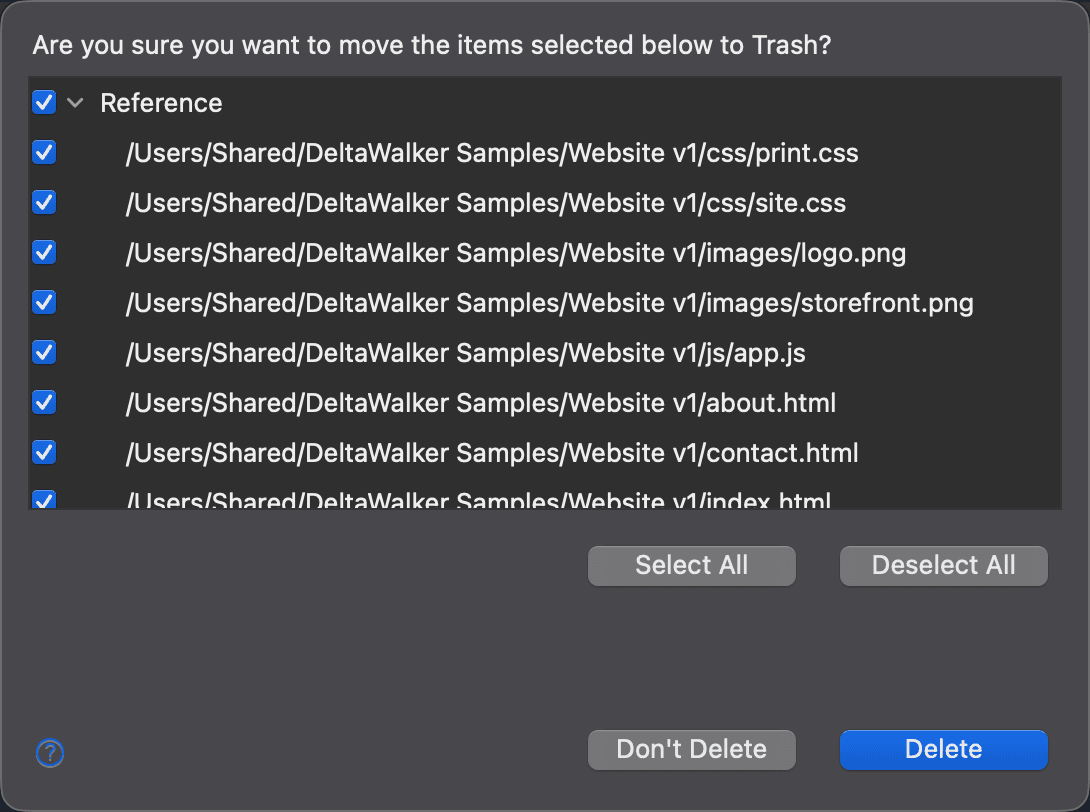
This screenshot shows four items selected in the Second folder: one folder and three of its files. That is the default: the items you selected in the side of the comparison where you started the deletion are selected in the dialog. The corresponding items on the other side are listed, but not selected, as deleting them may not be your intention.