The Welcome Page
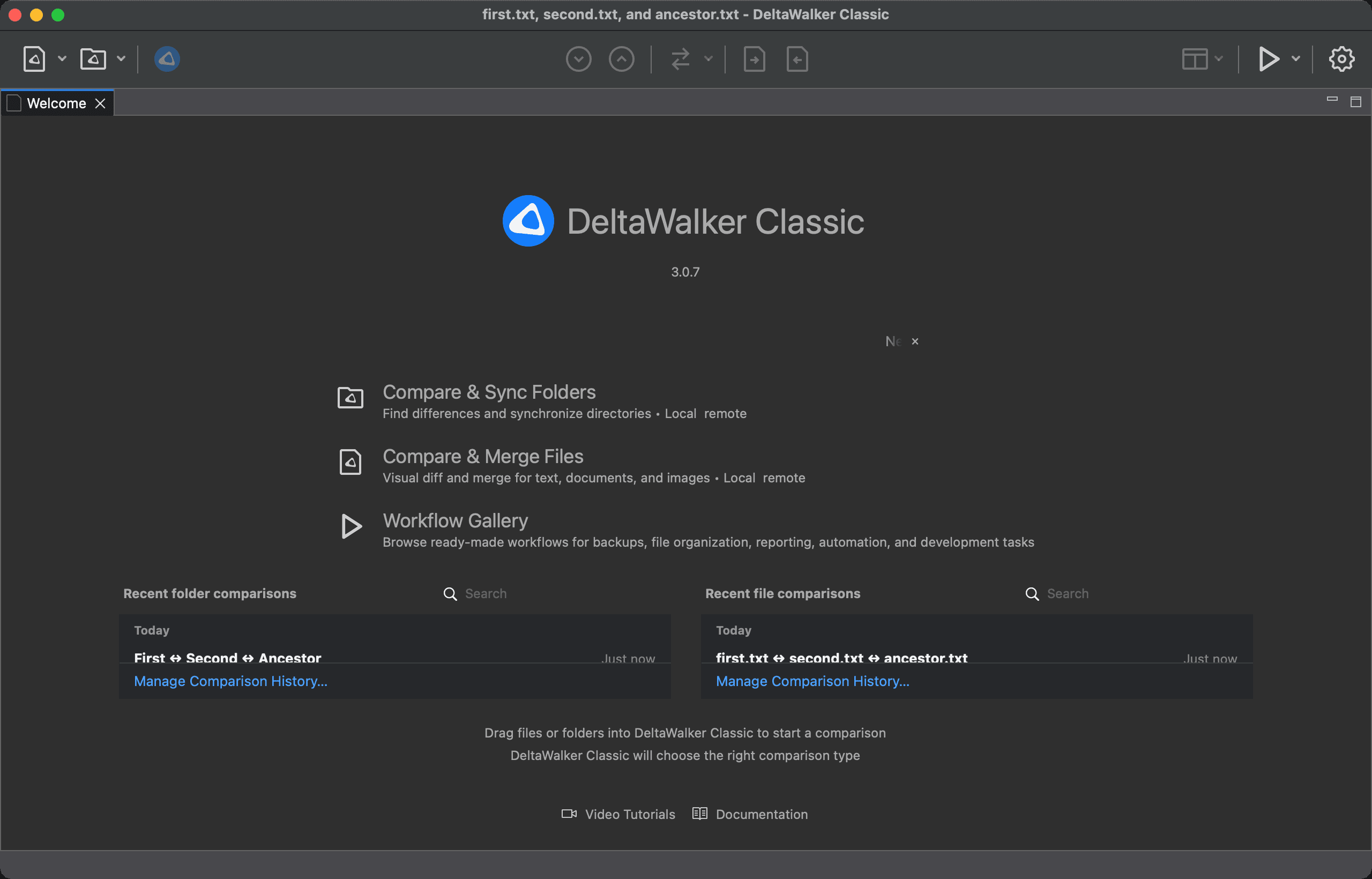
The Welcome page is where DeltaWalker Classic starts when nothing else is open. It gives you one-click ways to start a comparison, lists your recent comparisons so you can pick up where you left off, and links to the documentation.
To open it at any time, choose Window > Welcome. If it is already open, the command brings it to the front.
When It Opens on Its Own
DeltaWalker Classic opens the Welcome page in two situations, as long as Show welcome page on startup is selected on the General page of the Settings window (Settings > Application > General, selected by default):
- when DeltaWalker Classic starts and has no comparison to restore, and
- when you close the last open comparison.
Clear Show welcome page on startup if you prefer an empty window; Window > Welcome still opens the page on demand. The page closes by itself as soon as a comparison opens.
What the Page Shows
From the top down:
- Header. The DeltaWalker Classic icon and name, with a version badge under them. The badge shows the version number, for example 3.0.4, or the release-candidate label on a release candidate.
- Announcement card. A one-line message from Deltopia with a link, and a × that dismisses it. It appears only while Deltopia has an announcement or offer to show, and never in the Mac App Store version.
- Start actions. Large links that start a comparison (see below).
- Recent comparisons, when your history is not empty. Otherwise the page says No recent comparisons.
- Drop area. A box that reads “Drag files or folders into DeltaWalker Classic to start a comparison”.
- Links. Video Tutorials opens the DeltaWalker website in your browser, and Documentation opens this documentation. The Mac App Store version has no Video Tutorials link.
Start Actions
- Compare & Sync Folders opens a new folder comparison. In DeltaWalker Classic Free, which has no one-click folder synchronization, the link reads Compare Folders.
- Compare & Merge Files opens a new, empty file comparison.
- Workflow Gallery opens the Workflow Gallery. It appears only in editions that can run scripts, so not in DeltaWalker Classic Free or the Mac App Store version.
Where remote locations are available, the descriptions under the first two links end with “Local & remote”. Free has no remote locations, so it leaves that out.
Recent Comparisons
The page lists your recent folder comparisons and recent file comparisons, grouped under Today, Yesterday and Earlier by the day you last opened them. When the window is wide enough, the two lists sit side by side, each with its own Search field. In a narrower window the page shows one list at a time, with Folders and Files buttons to switch between them.
- Type in a Search field to show only the comparisons whose name or paths contain every word you typed.
- Click a comparison to open it. If it is already open, DeltaWalker Classic brings it to the front instead.
- Point at a comparison to show icons to add it to your favorites, remove it from the history, or rename it. Right-click a comparison for Rename and Remove from History.
- Click Manage Comparison History… under a list to open the Organize History dialog (also File > History > Organize…), where you can rename and delete several comparisons at once.
The lists are the same ones that drop down from the File Comparison and Folder Comparison toolbar buttons. See Comparison History.
Drop Area
Drop two or more files or folders on the drop area to compare them. DeltaWalker Classic chooses the right kind of comparison for what you dropped. Dropping three items starts a three-way comparison where your edition includes it; in Free, DeltaWalker Classic compares the first two and tells you why. Dropping a single item does nothing.
Edition Differences
| Free | Pro, Oro, trial | |
|---|---|---|
| Folder start action | Compare Folders | Compare & Sync Folders |
| Workflow Gallery | Not shown | Shown |
| “Local & remote” in the descriptions | Not shown | Shown |
The Mac App Store version also omits the announcement card, the Video Tutorials link and the Workflow Gallery.
Appearance