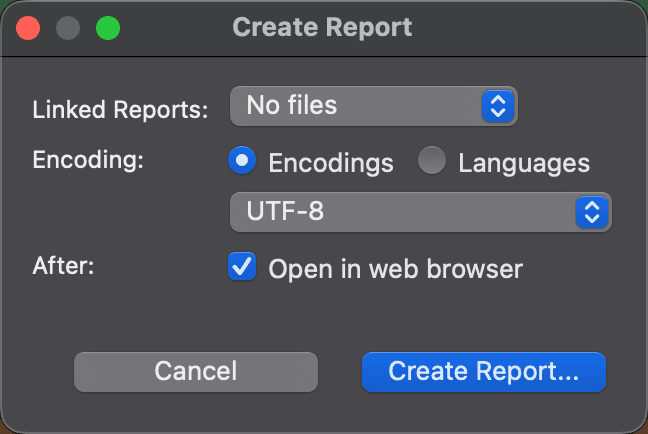
Create Report Dialog
Use the Create Report dialog to save the current comparison as an HTML report. To open it, choose File > Report > Create HTML… in a text comparison or a folder comparison. Both two-way and three-way comparisons can be reported. For what the reports contain, see Folder Comparison Reports and Text Comparison Reports.
On macOS and Linux, a small Create Report dialog with the options below comes first. Set them, then click Create Report… to choose where to save the report. On Windows, the same options appear in the save dialog itself.
| Control | Description |
|---|---|
| Linked Reports: | Folder comparisons only. Choose which of the files in the folder comparison get their own linked file comparison report, which the folder report links to: No files, All files, Changed files, or Selected files. DeltaWalker Classic remembers your choice for the next report. |
| Encoding: | The character encoding of the report file. |
| After: Open in web browser | Opens the report in your default web browser once it has been created. This option is on by default, and DeltaWalker Classic remembers your choice for the next report. |
The file name starts out as FReport.html for a folder comparison and TReport.html for a text comparison. Change the name or the folder in the file dialog, which lists HTML files (*.html) or All Files (.).
DeltaWalker Classic creates the report in the background, so you can keep working. Creating report… appears in the status bar while it runs. If the report can’t be created, DeltaWalker Classic shows the message Couldn’t create a report: followed by the reason.
Appearance