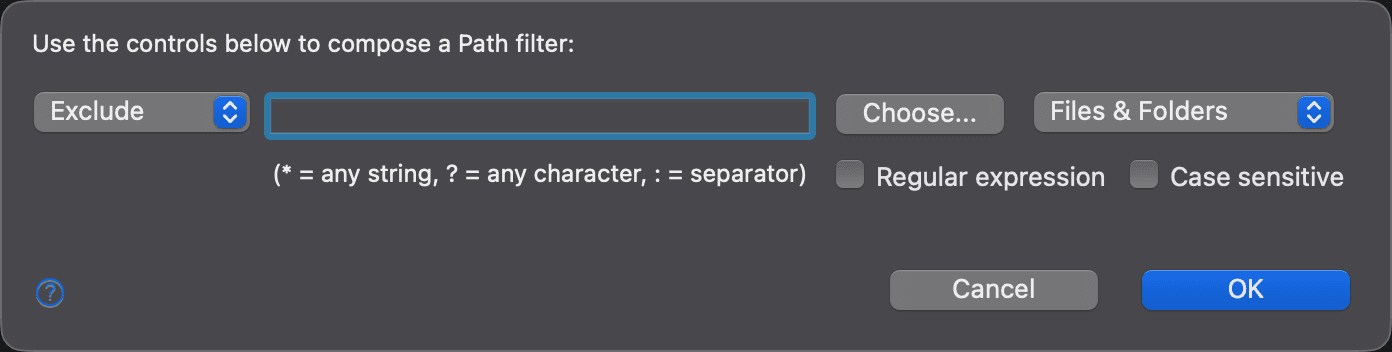
Add New Filter Dialog
Use this dialog to create a folder comparison filter, or to change one. A filter includes matching files and folders in a folder comparison, excludes them from it, or, in the case of an alignment override, matches files and folders with different names so that they are compared with each other.
To create a filter, go to Settings > New Comparisons > Folder Comparisons > Filters (or to the same page on the tab of an active folder comparison), click New, and choose the type of filter. To change a filter, select it in the list and click Edit; the dialog is then titled Edit Filter.
The line at the top of the dialog names the type of filter you are composing, for example “Use the controls below to compose a Path filter:”. The controls below it depend on the type:
| Filter type | What it matches |
|---|---|
| Path | File and folder names or paths, using a shell or a regular expression |
| Date/Time | Files modified before or after a given date and time, or a given time ago |
| Size | Files larger or smaller than a given size |
| Attribute | Files and folders that have a given attribute, such as hidden or executable |
| Alignment Override | Pairs of differently named files and folders to compare with each other |
Every filter type except Alignment Override has these two drop-down lists:
| Control | Description |
|---|---|
| Action | Exclude or Include the matching items. New filters start with Exclude. |
| Target | Whether the filter applies to Files & Folders, Files, or Folders. Date/Time and Size filters always apply to files, and so does an Attribute filter for Executable. |
Click OK to save the filter, or Cancel to discard your changes.
Appearance