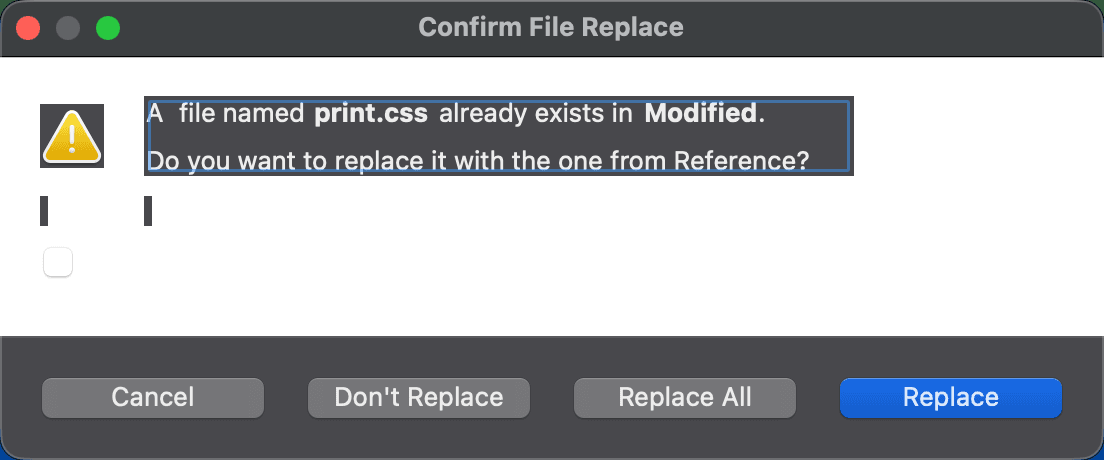
Confirm Replace Dialogs
DeltaWalker Classic asks you to confirm before a copy, move or synchronization overwrites an item that already exists at the destination. The dialog is titled Confirm File Replace when the item is a file and Confirm Folder Replace when it is a folder. It appears when you copy or move items in a folder comparison, and when Update or Mirror replaces items.
The message names the item and the side it is in, and tells you if the existing item is newer or older than the one that would replace it, or read-only:
- For a file: “A newer file named name already exists in side. Do you want to replace it with the one from side?” The first sentence can also read “An older file”, “A newer, read-only file”, and so on.
- For a folder: “A newer folder named name already exists in side. If files in that folder have the same name as files in the folder you are copying, they will be replaced. Do you still want to copy or move the folder?”
| Control | Description |
|---|---|
| Replace | Replaces the existing item. This is the default button. |
| Replace All | Replaces this item and the other items that the operation would replace. Offered only when the operation involves several items. |
| Don’t Replace | Keeps the existing item and carries on with the rest of the operation. |
| Cancel | Stops the operation. Closing the dialog with Esc or the close button does the same. |
| Show only when Shift is down | When selected, DeltaWalker Classic asks only if you hold down Shift as you start the operation, and replaces older items without asking otherwise. It always asks before replacing a newer item. |
The Show only when Shift is down checkbox is the same setting as Show Confirm Replace dialog only when Shift key is down on the Folder Comparisons page of the Settings window. It is off by default, and a change takes effect right away, even if you then click Cancel.
Appearance