Folder Comparison Date/Time Filter Dialog
Use a date/time filter to include files in a folder comparison, or to exclude them from it, based on when they were last modified. To create one, go to Folder Comparisons > Filters, click New, and choose Date/Time. To change one, select it and click Edit.
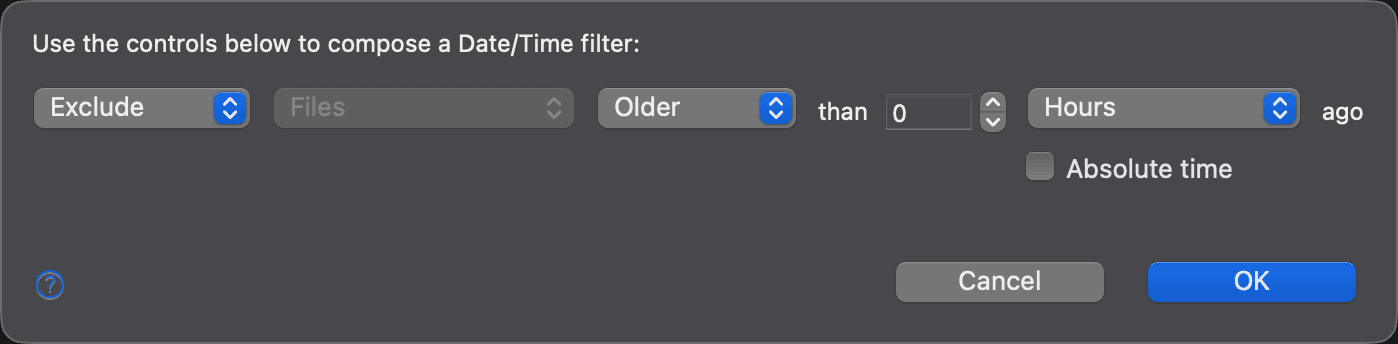
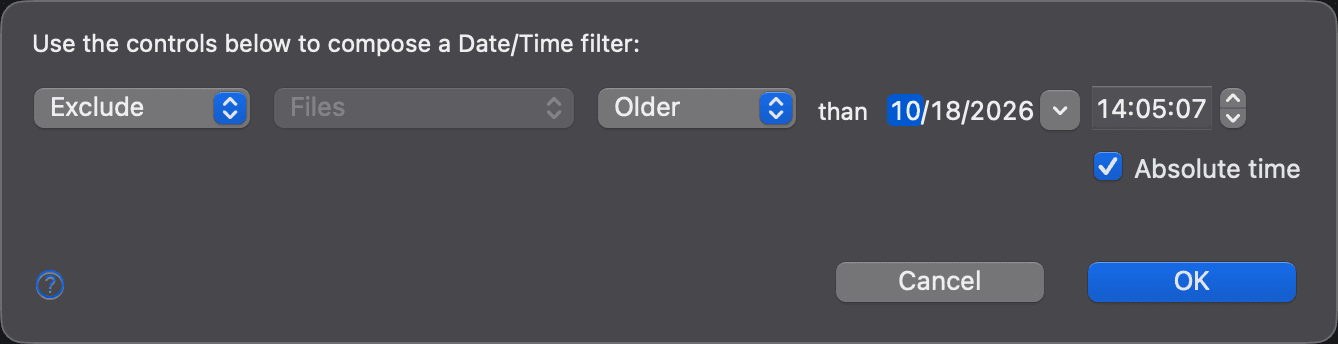
The dialog reads “Use the controls below to compose a Date/Time filter:”, followed by a row of controls that reads as a sentence, for example Exclude Files Older than 2 Days ago.
| Control | Description |
|---|---|
| Action | Exclude or Include the matching files. New filters start with Exclude. |
| Target | Always Files: date/time filters apply to files only. |
| Relation | Older or Newer than the time that follows. |
| Date and time | With Absolute time selected: the date and time to compare with. |
| Amount and unit | With Absolute time cleared: how long ago, as a number from 0 to 9999 and a unit from Milliseconds to Years, followed by “ago”. The unit starts at Hours. A month counts as 30 days and a year as 365 days. |
| Absolute time | Selected: the filter compares with a fixed date and time. Cleared: it compares with a time relative to when the comparison runs. Selected by default. |
A relative time is always counted from the moment the filter is applied. For example, a filter that excludes files older than 2 hours always excludes the files modified more than 2 hours before the comparison runs.
When you select Absolute time after entering a relative time, DeltaWalker Classic converts it for you: 1 hour ago becomes the date and time an hour ago. DeltaWalker Classic remembers your choice of Absolute time and of the unit for the next filter you create.
Click OK to save the filter. With a relative time of 0, OK does nothing: enter an amount first.
Appearance
With Absolute time selected:
With Absolute time cleared: