Organize History Dialog
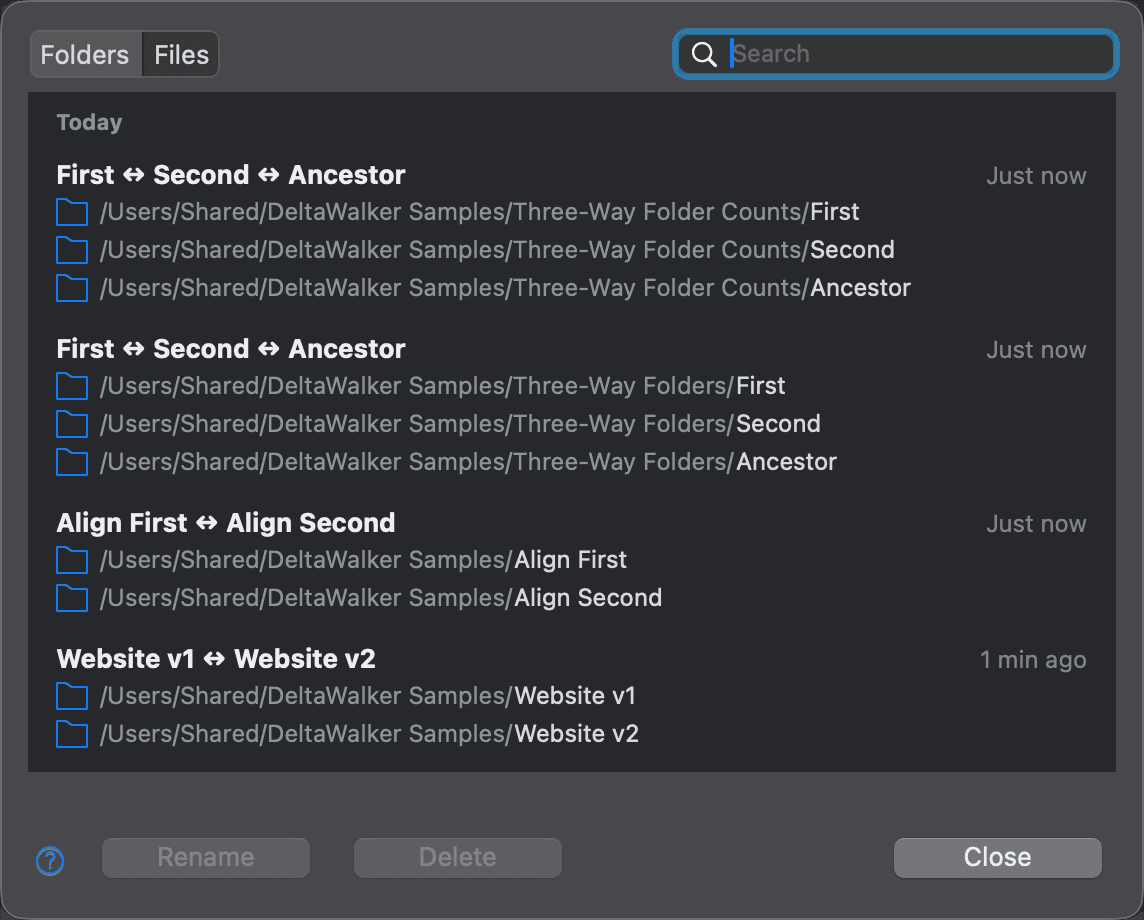
Use this dialog to find, open, rename, and delete the comparisons in your comparison history. To open it, choose File > History > Organize…, or click Manage Comparison History… at the bottom of the comparison history list that opens from the arrow next to the File Comparison and Folder Comparison toolbar buttons.
The dialog shows one kind of comparison at a time. Use the Folders and Files switch at the top to choose which; the dialog opens on the kind you looked at last. The comparisons are listed by when you last opened them, grouped under Today, Yesterday, and Earlier.
| Control | Description |
|---|---|
| Folders / Files | Shows your folder comparisons or your file comparisons. |
| Search field | Shows only the comparisons that match what you type. The field has the keyboard focus when the dialog opens, so you can start typing right away. |
| Comparison list | Click a comparison to select it; Cmd-click or Shift-click to select several. Double-click a comparison, or press Return, to open it. Press Delete to remove the selected comparisons. Hovering over a comparison shows icons to add it to or remove it from your favorites, to rename it, and to remove it from the history. Favorites are the last to be removed when the history makes room for new comparisons. |
| Rename | Renames the selected comparison. Available when exactly one comparison is selected. |
| Delete | Removes the selected comparisons from the history. |
| Close | Closes the dialog. |
Appearance
See Also
最后更新于