Folder Comparison Path Filter Dialog
Use a path filter to include files and folders in a folder comparison, or to exclude them from it, based on their names or paths. A path filter is a shell expression or a regular expression; one filter can hold several expressions, separated by a colon (:) on macOS and Linux or a semicolon (;) on Windows. To create one, go to Folder Comparisons > Filters, click New, and choose Path. To change one, select it and click Edit.
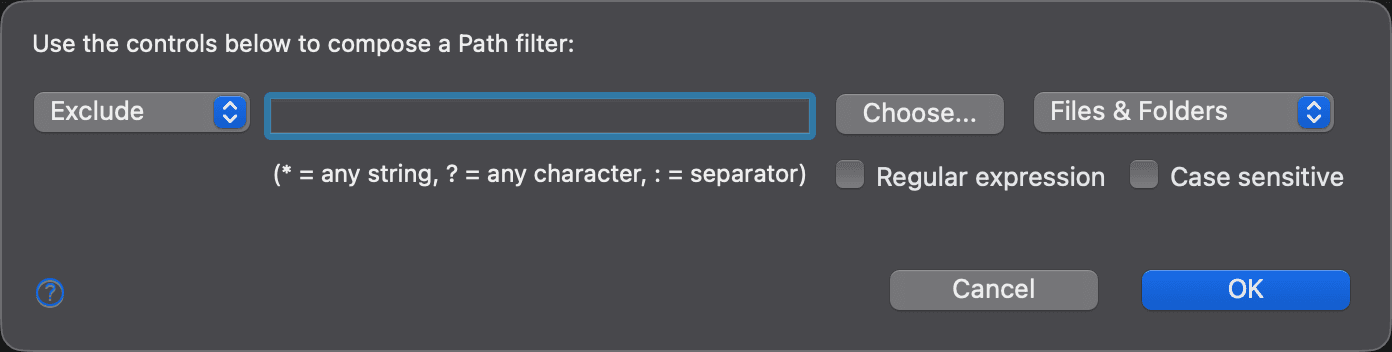
The dialog reads “Use the controls below to compose a Path filter:”, followed by these controls:
| Control | Description |
|---|---|
| Action | Exclude or Include the matching files and folders. New filters start with Exclude. |
| Expression | The expression to match. In a shell expression, ? matches any single character and * matches any string, as the hint below the field reminds you. For how a shell expression matches names and paths, see Folder Comparisons > Filters. |
| Choose… | Opens the Select Expressions dialog, where you can pick from well-known shell expressions, such as *.exe or .git, and from the expressions already in the field, and combine them into one filter. Available only when Regular expression is cleared. |
| Target | Whether the filter applies to Files & Folders, Files, or Folders. New filters start with Files & Folders. |
| Regular expression | Treats the expression as a regular expression. Otherwise it is a shell expression. |
| Case sensitive | Matches the capitalization of the names. |
Click OK to save the filter. If a regular expression has a syntax error, the dialog says so and stays open until you correct it.
Appearance
See Also
最后更新于