How Do I Master Text Editing?
Aside from having a powerful text editor to begin with, the key to power-user text editing lies in knowing the shortcut keys your editor has to offer.
DeltaWalker Classic offers a wealth of text editing features, with shortcut keys to back them up.
Press Cmd+Shift+L to see the shortcut keys offered by DeltaWalker Classic’s text editor:
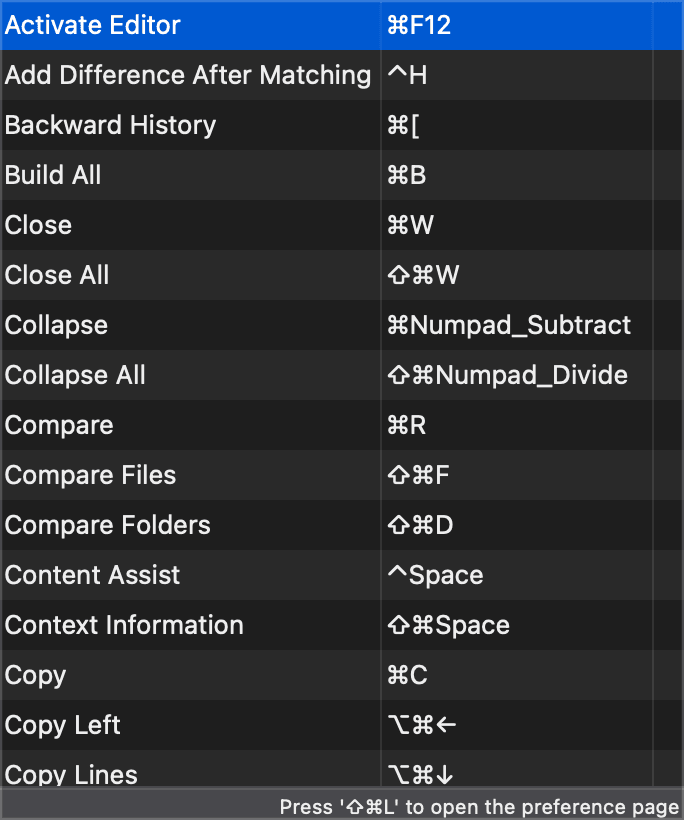
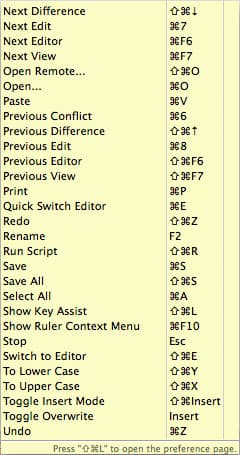
That, however, is not the whole story. As the bottom of these images shows, pressing Cmd+Shift+L again brings up the Keys settings page—another place where you can examine the DeltaWalker Classic key bindings and, more importantly, define your own key bindings if the default ones are not to your liking.
Incremental String Search
Incremental string search is a power-user feature that is easily overlooked.
Choose Edit > Incremental Find Next (Cmd+J) or Edit > Incremental Find Previous (Cmd+Shift+J) to enter incremental find mode, and start typing the string to match. Matches are found incrementally as you type, and the search string is shown in the status line. Press Cmd+J or Cmd+Shift+J to go to the next or previous match. Press Enter or Esc to exit incremental find mode.
Traversing Between Text Editors Using the Keyboard
To move between the text editors or folder trees and the file or folder path selectors of a comparison window, use:
- Ctrl+Tab to move forward
- Ctrl+Shift+Tab to move backward
To make the Tab key insert spaces instead of tab characters, turn on Insert spaces for tabs on the Text Editing > Editors settings page.