Folder Comparison Alignment Overrides Dialog
Alignment override filters determine how files and folders on the two sides of a folder comparison are matched, or aligned. By default, DeltaWalker Classic aligns files and folders by their names: for two items to be compared, their names must be the same. For example, a file named data.txt in the first (left) panel can only be compared to a file named data.txt.
Often, however, you need to align and compare items with different names, for example data.txt with data.log. That is what alignment overrides are for.
Alignment overrides are available in DeltaWalker Classic Pro and Oro, and during the trial.
Appearance
Usage
To create an alignment override filter, go to the Folder Comparisons > Filters page of the Settings window, click New, and choose Alignment Override.
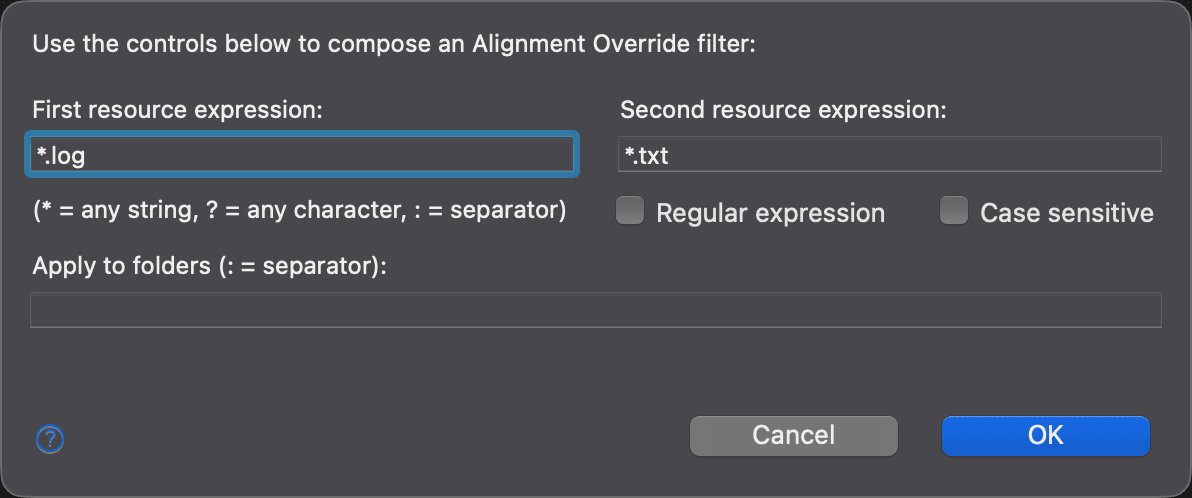
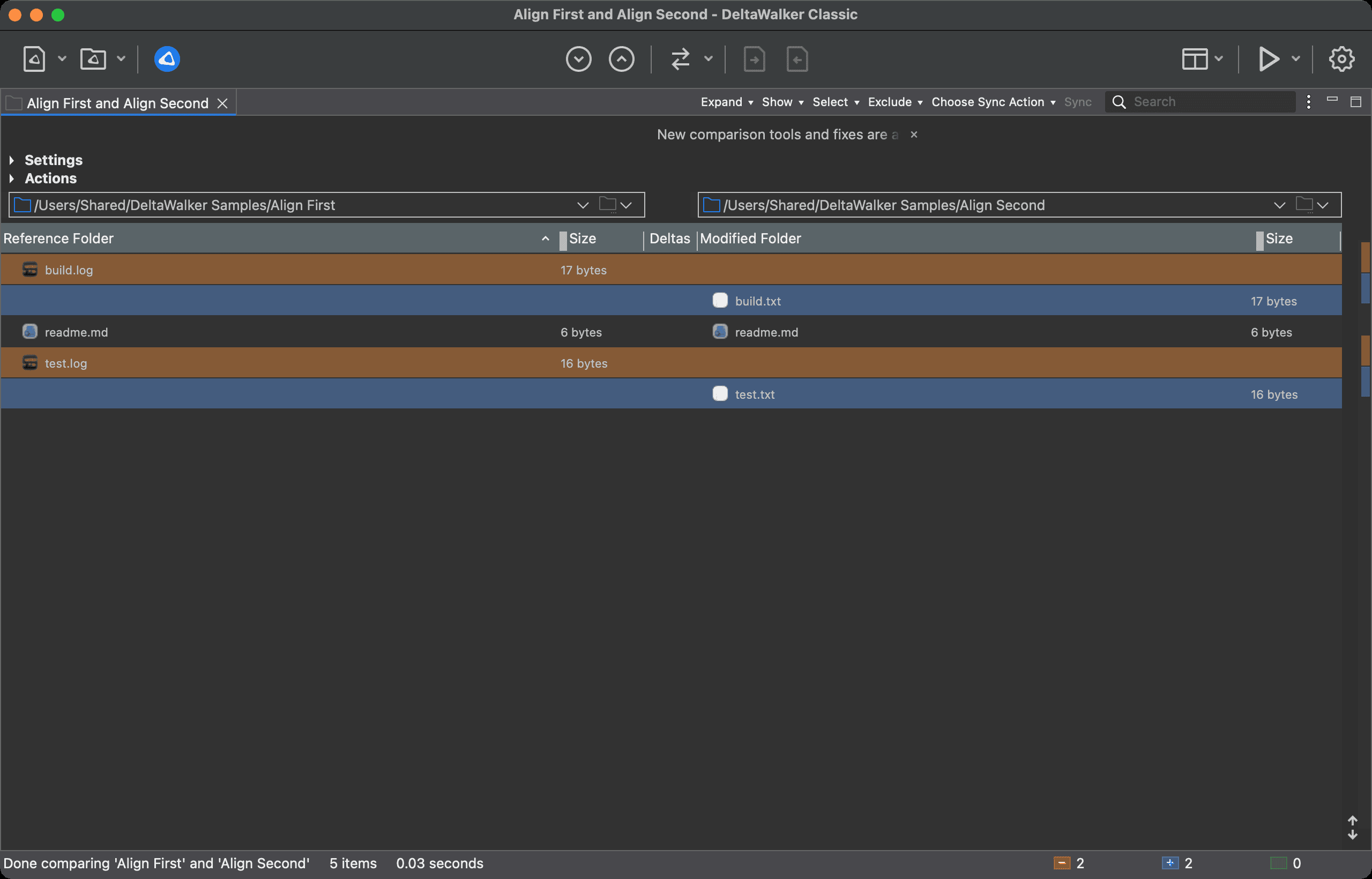
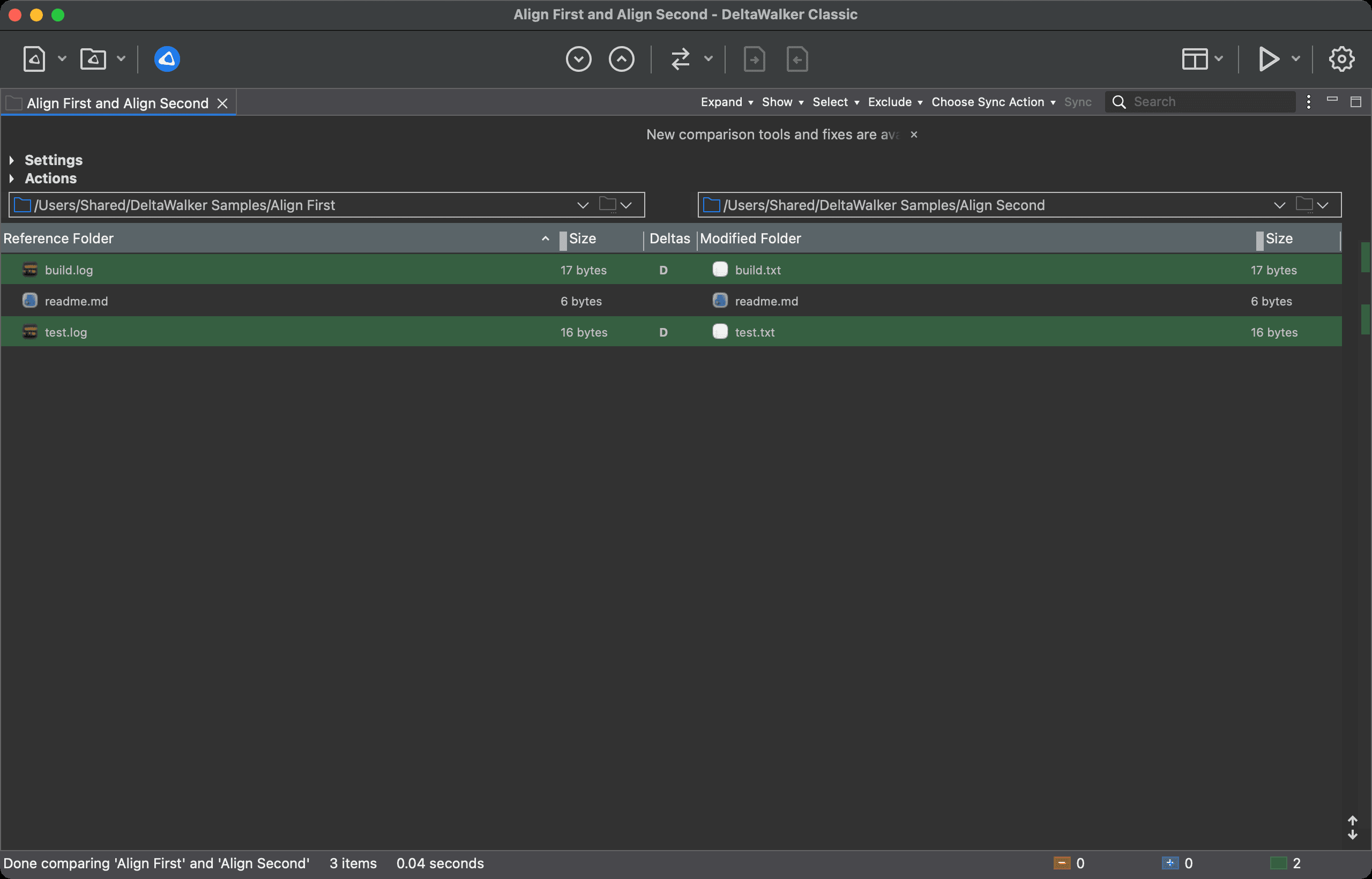
In the Add New Filter dialog, type the expressions that match the names into First resource expression and Second resource expression. For example, *.log for the first and *.txt for the second tells the folder comparison to ignore the extensions when it matches files with the extensions .log and .txt. The following before and after screenshots show the result:
Before, with no alignment override filter:
After, with the alignment override filter described above:
| Control | Description |
|---|---|
| First resource expression | The expression that matches names on the first side. |
| Second resource expression | The expression that matches names on the second side. |
| Regular expression | Treats both expressions as regular expressions. Otherwise they are shell expressions, as the hint next to the checkbox reminds you. |
| Case sensitive | Matches the capitalization of the names. |
| Apply to folders | One or more folder names, separated by a colon (:) on macOS and Linux or a semicolon (;) on Windows, to apply the alignment override to. With large folder hierarchies, limiting an alignment override to the folders that need it can greatly speed up the folder comparison. |
Both expressions are required. Click OK to save the filter.
Expressions
As with the include and exclude folder comparison filters, you can use shell expressions or the more powerful, and more complex, regular expressions.
A shell expression can use the following special characters:
- ? matches any single character. For example, test??.log matches any name that starts with “test”, continues with two more characters, and ends with “.log”, such as test12.log or testAZ.log, but not testA.log.
- * matches any sequence of characters, including none. For example, test*.log matches any name that starts with “test” and ends with “.log”, such as test1.log, testMyFile.log, and even test.log, but not test.logs.
Regular expressions make alignment override filters more powerful. An alignment override filter matches two names, one from each side, using two regular expressions: the primary (first) and the secondary (second). The secondary expression can refer to a group of the primary expression, with ($1) for the first group, ($2) for the second, and so on.
For example, if test(\d).txt is the primary and test($1).log is the secondary expression, ($1) in the secondary refers to the first group in the primary. This aligns test1.txt with test1.log, test2.txt with test2.log, and so on.
Examples
| First | Second | Regular expression | Effect |
|---|---|---|---|
| sample.txt | sample.log | No | Aligns “sample.txt” with “sample.log”. |
| *.txt | *.log | No | Aligns files with the extension “txt” with files with the extension “log”, for example “file1.txt” with “file1.log” and “readme.txt” with “readme.log”. |
| start*.htm | index*.html | No | Aligns files with the prefix “start” and the extension “htm” with files with the prefix “index” and the extension “html”, for example “start_page1.htm” with “index_page1.html” and “start_help.htm” with “index_help.html”. |
| Log_(\d+)\.log | ($1)\.txt | Yes | Aligns names that begin with “Log_”, continue with at least one digit, and end with the extension “log” with names that have no “Log_” prefix, the same digits, and the extension “txt”. For example, “Log_20120616.log” with “20120616.txt” and “Log_20120617.log” with “20120617.txt”. |