Folder Comparisons
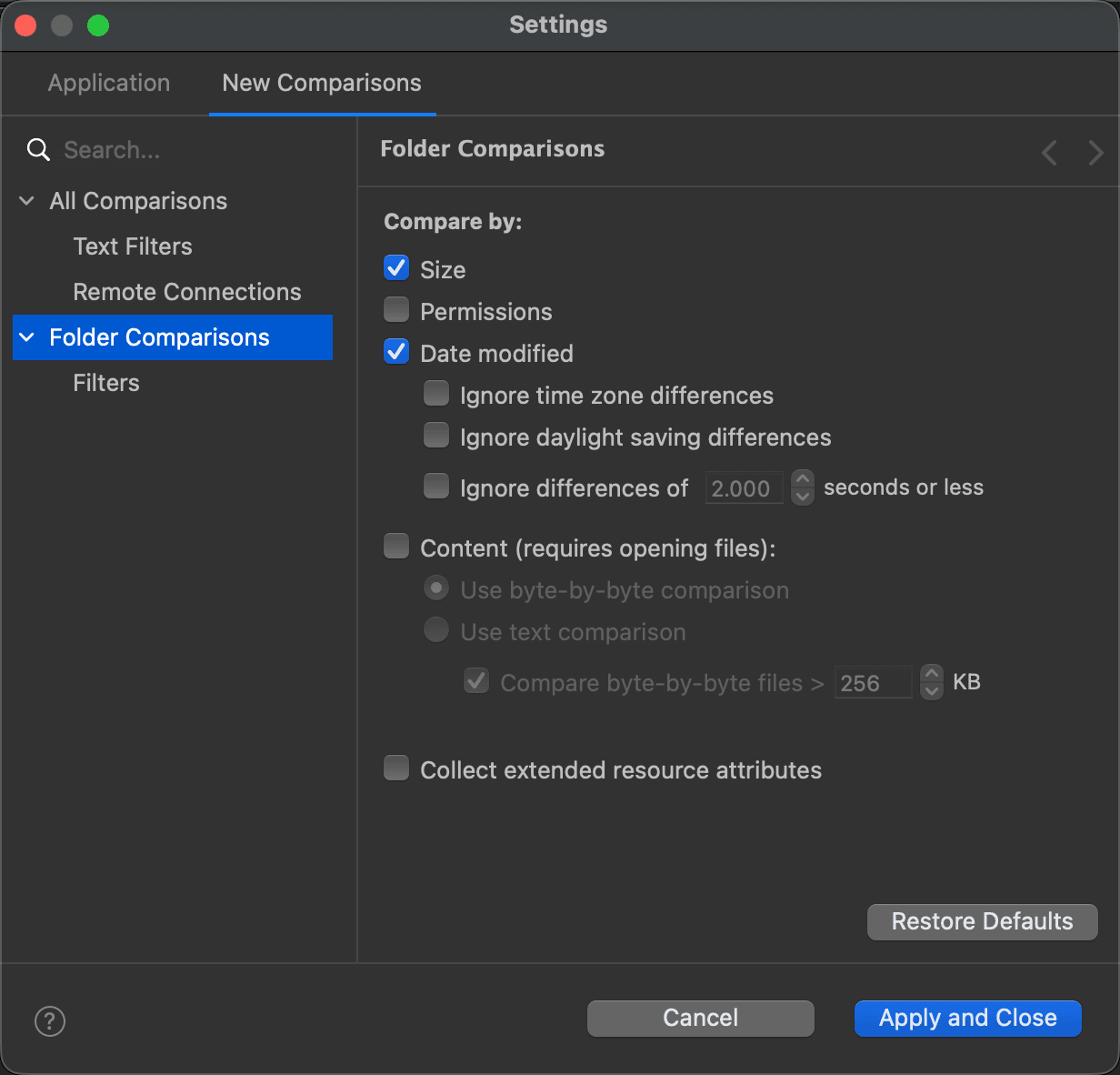
Find it under Settings > New Comparisons > Folder Comparisons. The tab of an active folder comparison has the same page, for that comparison alone.
Use this page to customize the following settings:
Preference | Description | Default |
Size | The comparison criterion is the files' sizes. This is a very fast way to compare resources, but it's not always reliable as two resources could have the same size, yet different content or attributes. | On |
Permissions (Attributes on Windows) | When selected, files are compared by their POSIX permissions on Mac OS X and Linux, and by other attributes e.g. Read-only, on Windows. Very fast. | Off |
Date modified | The comparison criterion is the files' timestamps. Similarly to comparison by size, this is a very fast, but not always a reliable way to compare resources. | On |
Ignore time zone differences | When selected, time differences of exactly 1 to 25 hours (26 if Ignore daylight savings is selected) are ignored. | Off |
Ignore daylight saving differences | When selected, time differences of exactly 1 hour are ignored. | Off |
Ignore differences of ... seconds or less | This option can help you ignore artificial time differences imposed by some file systems. For instance, FAT32 sets the timestamps of its resources to the specified time rounded up to the nearest even second. As a result, files and folders copied or moved to such file systems may be reported as different when compared by their timestamps. Other times, network latency can cause copy or move operations to create resources with timestamps different from the original. | Off / 2.000 |
Content (requires opening files) | Select this option to compare files in the context of folder comparison using the same differencing algorithm as the file comparison itself. Produces the most accurate and comprehensive results. | Off |
Use byte-by-byte comparison | Use this option to perform byte-by-byte comparison of files. Comparing files byte-by-byte is always faster than comparing them as text and uses considerably less memory. Applies when Content is turned on. | On |
Use text comparison | Files identified by the DeltaWalker content detection mechanism as text files are compared using the selected text comparison algorithm. Any selected text comparison filters and options e.g. ignore whitespace, ignore case, etc. are also applied. | Off |
Compare byte-by-byte files > ... KB | Comparing large and very large text files as text in the context of a folder comparison can be slow and memory intensive, while oftentimes one doesn't need to know the details of how exactly the texts of these files differ. Use this option to perform byte-by-byte comparison for files larger than the specified size. | On / 256 KB |
Collect extended resource attributes | Turn this on to have DeltaWalker collect the extended attributes of files and folders, which the Date Created, Date Last Opened, Owner and Group columns of the folder comparison window need in order to show accurate information. Show those columns on the Appearance > Folder Comparisons page. | Off |
The page
Pages under Folder Comparisons
See Also
- All Comparisons
- Appearance > Folder Comparisons: the columns and more of the folder comparison window.