Binary Comparison
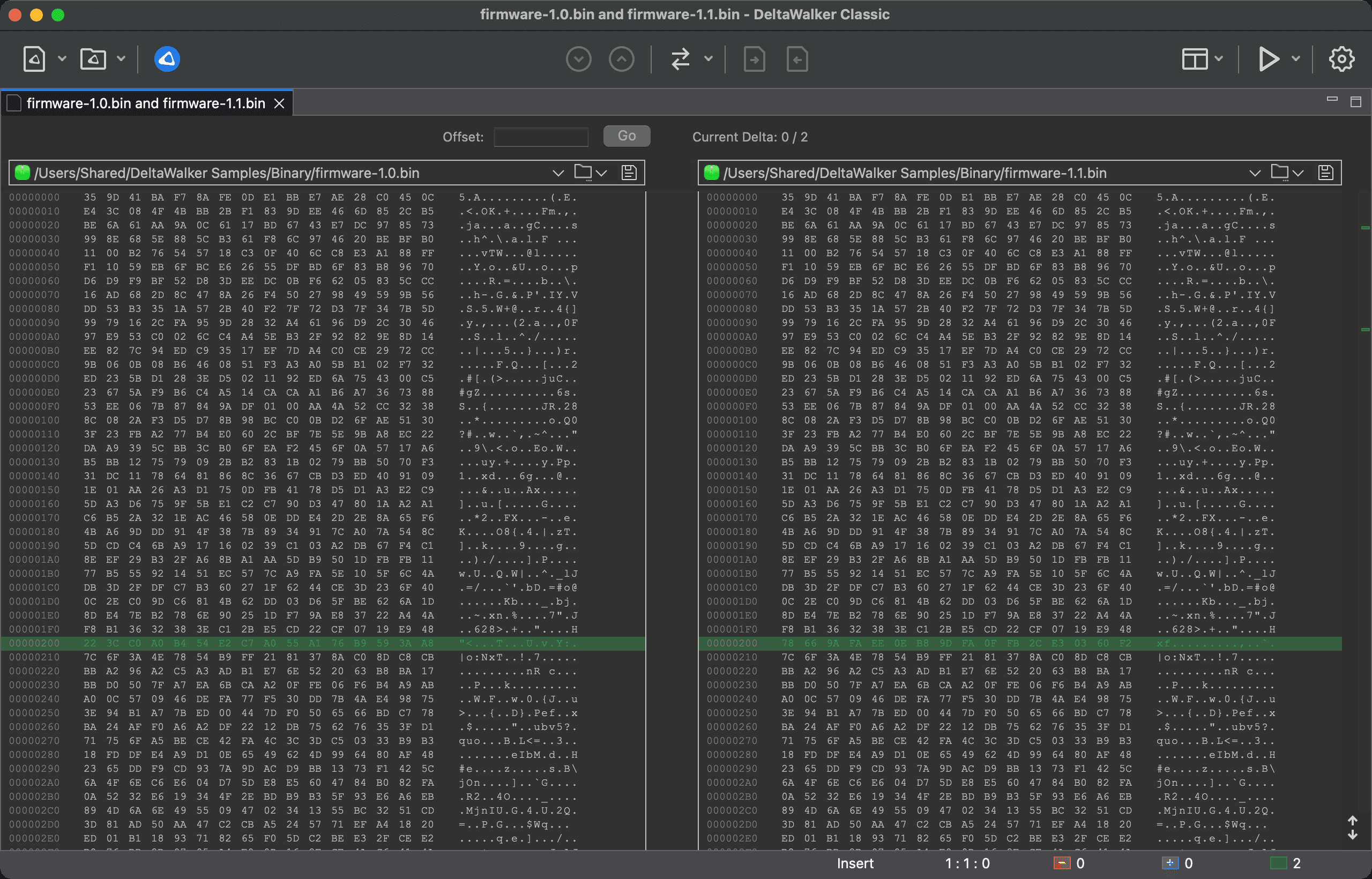
DeltaWalker Classic compares binary files byte by byte and shows them in a hex/ASCII view. The view lines the two files up even when bytes have been inserted or deleted, so a change near the start of a file does not mark everything after it as different. All editions include binary comparison.
Opening a binary comparison
DeltaWalker Classic opens the binary view when the files you compare have the content type Binary. Open a file comparison window and load the files as you would any others: drop them onto the editors, type or paste their paths, or select them in the Select File dialog. Double-clicking a pair of binary files in a folder comparison also opens them in this view.
DeltaWalker Classic decides a file’s content type from its first bytes and its extension. If it treats a file as the wrong type, change the association on the Content Types page of the Settings window.
To look at a single binary file without comparing it, choose File > Open Binary File… and pick the file. It opens in a Binary view, in a tab named after the file. This view is read-only: you can scroll, select, and copy, but not edit. Choosing the same file again brings its tab to the front.
The hex/ASCII view
Each row shows 16 bytes. From left to right, a row has the offset of its first byte, the bytes in hexadecimal, and the same bytes as ASCII characters. Bytes that are not printable ASCII characters appear as dots in the ASCII column. Where one file has bytes the other lacks, the rows are lined up so the matching bytes stay side by side.
The panes scroll together. Click a byte to place the caret on it, hold Shift while clicking or pressing an arrow key to select a range, and use Home, End, Page Up and Page Down to move around. Ctrl+Home and Ctrl+End go to the start and end of the file.
The Bird’s-Eye View strip next to the scroll bar shows where the deltas are in the whole file. Click a marker to go to that delta.
The dashboard
Above the panes, the dashboard has two things for navigating:
-
Offset: type the byte offset you want to see and click Go, or press Enter. The panes scroll to that byte. An offset is read as hexadecimal unless you mark it as decimal, and an offset beyond the end of the file goes to the last byte. The following all mean the same byte:
You type Read as 1FFEHexadecimal 1FFE (8190) 0x1FFEHexadecimal 1FFE (8190) dec:8190Decimal 8190 8190dDecimal 8190 A bare number such as
1000is hexadecimal too (4096). If DeltaWalker Classic can’t read what you typed as an offset, nothing happens. -
Current Delta: X / N: the number of the delta you are on and the total number of deltas. It reads Current Delta: 0 / 0 when the files are the same.
When any pane has changes you haven’t saved, ● Modified appears next to them.
Moving between deltas
Choose Navigate > Next Delta (Cmd+Shift+Down) or Navigate > Previous Delta (Cmd+Shift+Up), or click the Next and Previous Delta buttons. Both panes scroll to the delta.
Editing and saving
In a binary comparison you can change the bytes of either file directly. Click a byte in the hex column or the ASCII column, then type:
- In the hex column, type two hexadecimal digits to replace the byte under the caret. The first digit appears in blue until you type the second, and the caret then moves to the next byte. Press Esc to cancel a half-typed byte.
- In the ASCII column, type a printable character to replace the byte under the caret. The caret then moves to the next byte.
Typing replaces bytes; it does not insert or delete them, so the file keeps its length. Your changes are held in memory, shown in the view, and marked ● Modified until you save them. Saving writes only the bytes you changed, directly into the file.
In the hex/ASCII view, these shortcuts use the Control key, even on macOS. The usual Cmd versions do not reach the view:
| Shortcut | Action |
|---|---|
| Ctrl+Z | Undo the last edit |
| Ctrl+Y | Redo |
| Ctrl+S | Save the changes to the file |
| Ctrl+C | Copy the selected bytes (or the byte under the caret) to the clipboard, as hex digits separated by spaces if you were in the hex column, or as ASCII characters if you were in the ASCII column |
| Ctrl+A | Select the whole file |
If the save fails, a Save Failed message says why. A save is refused, with no byte written, if the file has changed in size since you opened it, is read-only, or isn’t a local file. Your edits stay in the view, so you can fix the problem and save again.
Copying a file over the other
The commands on the Edit > Copy/Move menu, and Cmd+Option+Right and Cmd+Option+Left, copy the whole contents of one file over the other. The destination file is replaced by the source file, and the comparison is refreshed. DeltaWalker Classic reports an error instead if the destination is read-only. In a binary comparison these commands act on whole files, not on individual deltas.
Appearance