Merging Text
Manual Text Merge
Merging—manual or automatic—is at the heart of any file comparison and folder synchronization tool. At the heart of DeltaWalker Classic’s manual text merging are the fly-by merge arrows.
Merge arrows
When DeltaWalker Classic displays text files with differences, it draws colored rectangles around the blocks of text that have been deleted or added, that match but have differences, or, in three-way comparison, that match but have conflicting differences.
Reconciling files that contain such differences usually involves:
- Replacing a difference in one file with a difference from another.
- Inserting a difference from one file at a certain place in the other.
- Deleting a difference.
As the screenshot below illustrates, this is exactly the role of the fly-by merge arrows in DeltaWalker Classic.

The merge arrows appear only when the pointer is over a difference, which keeps DeltaWalker Classic’s interface uncluttered. If you rest the pointer on the arrow for a moment, a tooltip lists what it can do:
- Click the arrow to replace the matching difference in the other file with this difference.
- Cmd-click the arrow to add this difference after the matching difference.
- Cmd+Shift-click the arrow to delete this difference.
While you hold down Cmd or Cmd+Shift, the arrow changes to show the add or delete operation, so the effect of the click is clear before you make it.
You can do the same from the keyboard while the cursor is in a difference: Ctrl+R (or Ctrl+G) replaces the matching difference, Ctrl+H adds this difference after the matching difference, and Ctrl+Shift+H deletes it. You can change these shortcuts on the Keys page of the Settings window, where they are listed as Replace Matching Difference, Add Difference After Matching, and Delete Difference.
In three-way comparison, DeltaWalker Classic also offers automatic merging of non-conflicting differences.
Manual and automatic merging are two of the tools in DeltaWalker Classic that help you reconcile—with confidence and ease—even large and heavily modified files.
Automatic Text Merge
In DeltaWalker Classic, automatic text merge exists only in three-way comparison and operates exclusively on non-conflicting changes. To run it, choose Edit > Merge Non-Conflicting Deltas. While a powerful tool, the concept behind it is simple: walk through all differences between the reference (ancestor) and the first modified file, and between the reference and the second modified file, and merge, one by one, all differences that are not conflicts. A conflicting difference is a block of text present in all three files that has been modified in both the first and the second modified files. At the end of the automatic merge, any conflicting differences are left as they are; their red background is a visual clue that they need your attention. As with the other DeltaWalker Classic colors, the color used for conflicts is customizable.
The following before and after screenshots illustrate the concept:
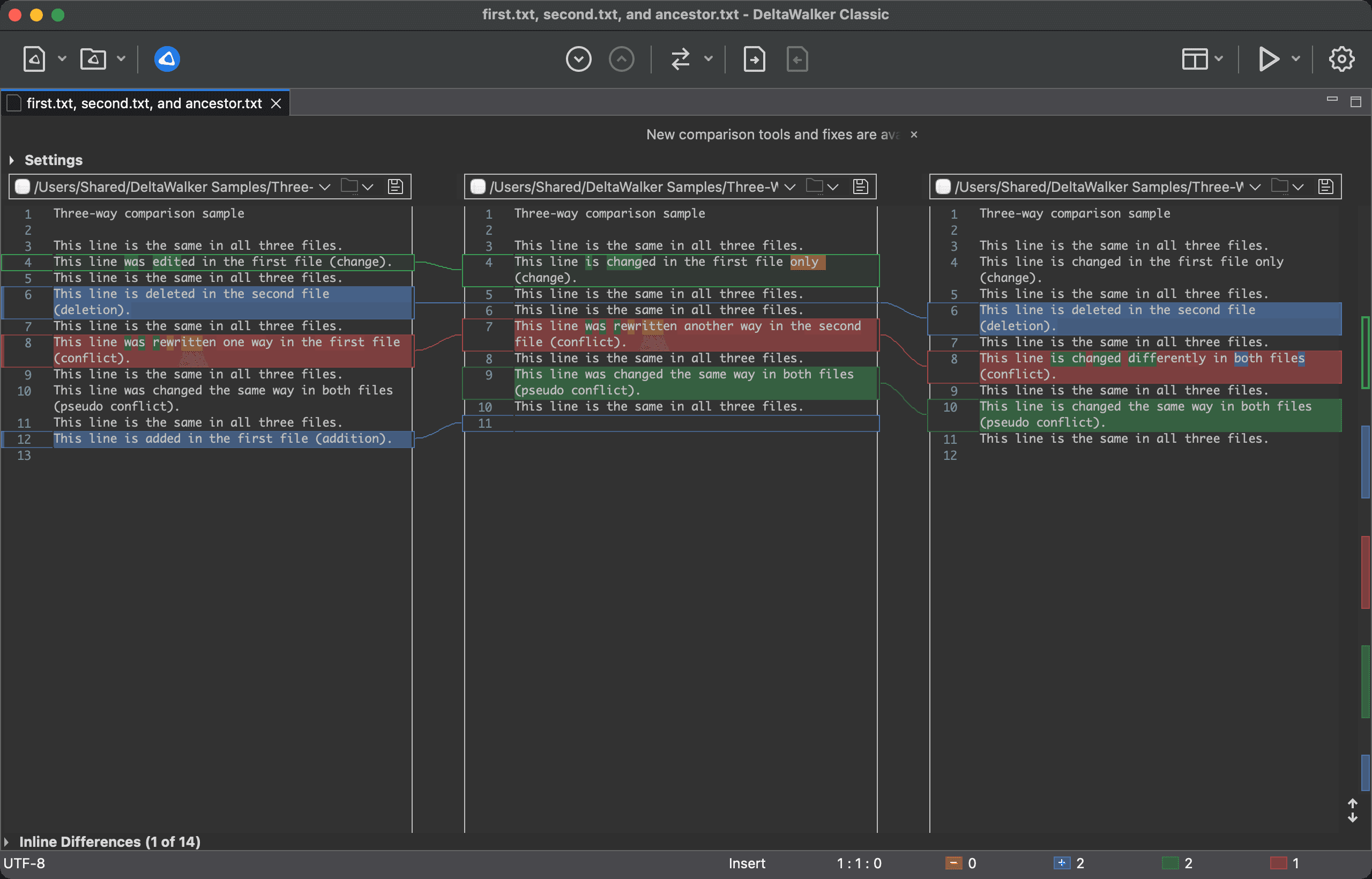
The words in the various blocks of text are chosen to be brief and informative—each word describes the type of change it represents.
Here are the same three files after automatically merging the non-conflicting differences:
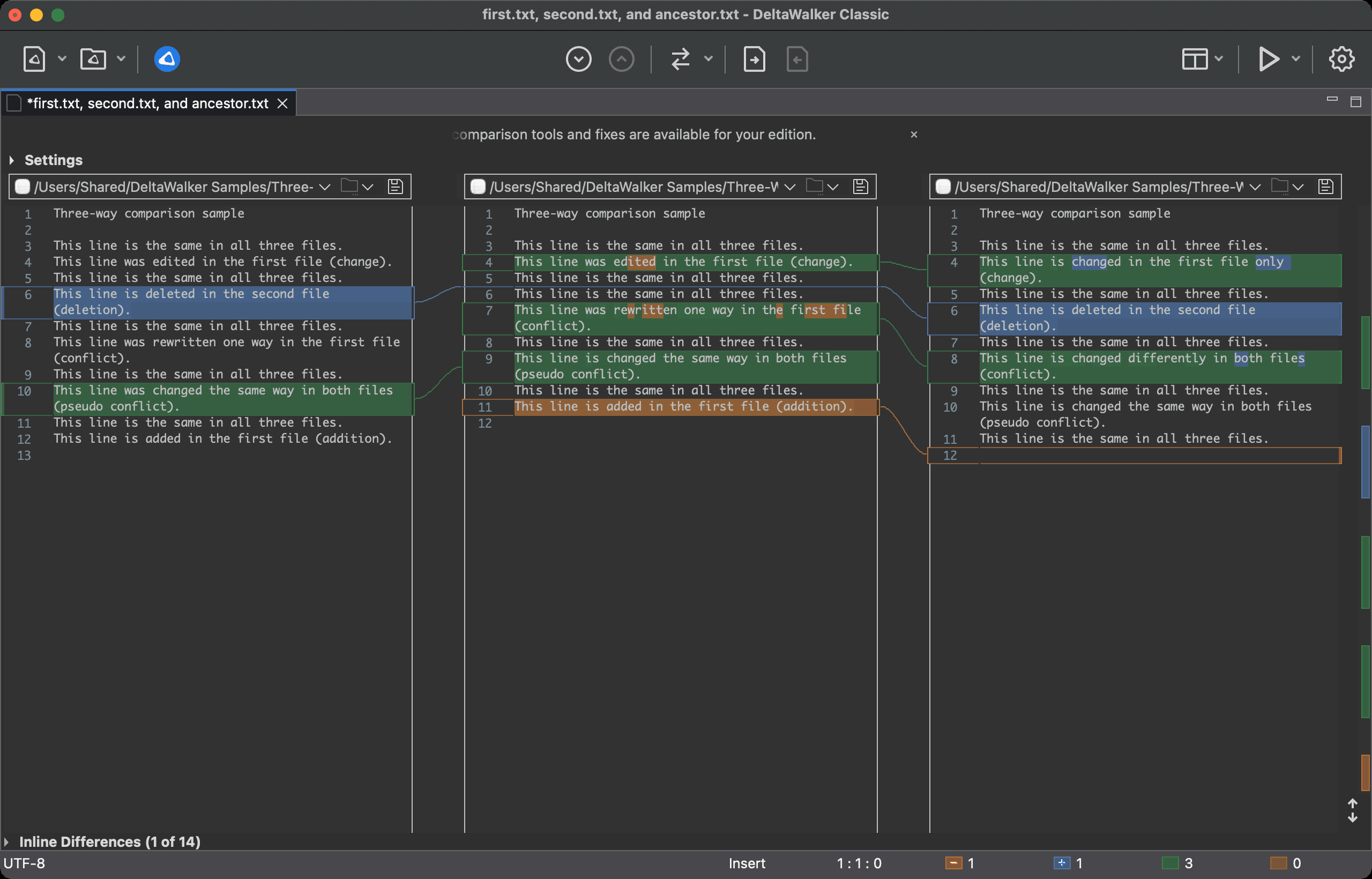
Comparing the before and after screenshots shows you the exact changes the automatic merge made to the reference file.
The conflicting lines were left intact, because resolving such conflicts properly usually depends on the context and is best done by a person who understands the context and can consolidate the conflicting changes.
DeltaWalker Classic’s undo/redo tracks all changes made to the editors, including those made by the automatic merge. This gives you peace of mind about the result of an automatic merge and lets you experiment with different approaches, such as combining automatic merging with manual conflict resolution, or any other combination of operations you find appropriate.