Find/Replace Dialog
Choose Edit > Find/Replace… or press Cmd+F to find, and replace, text in a text comparison editor.
Find/Replace Bar
By default, Edit > Find/Replace… opens a find/replace bar at the top of the text editor you are working in, rather than a dialog. DeltaWalker Classic searches as you type.
- Type the text you want to find in the search field, which reads Find while it is empty. Press Return to go to the next match, or Shift+Return to go to the previous one.
- The buttons next to the field search backward, search forward, and select all matches. The toggle buttons beside them limit the search to the selected area, and turn on regular expressions, case-sensitive matching, and whole-word matching.
- To replace text in a file you can edit, click the toggle button at the left edge of the bar to show the replace field below the search field, type the replacement text, then click Replace or Replace all.
- The arrow keys in either field bring back what you searched for or replaced before.
- Press Esc to close the bar.
To use the Find/Replace dialog instead, clear Use find/replace overlay under Settings > Application > Text Editing > Editors. The same page has Display find/replace overlay at bottom of editor.
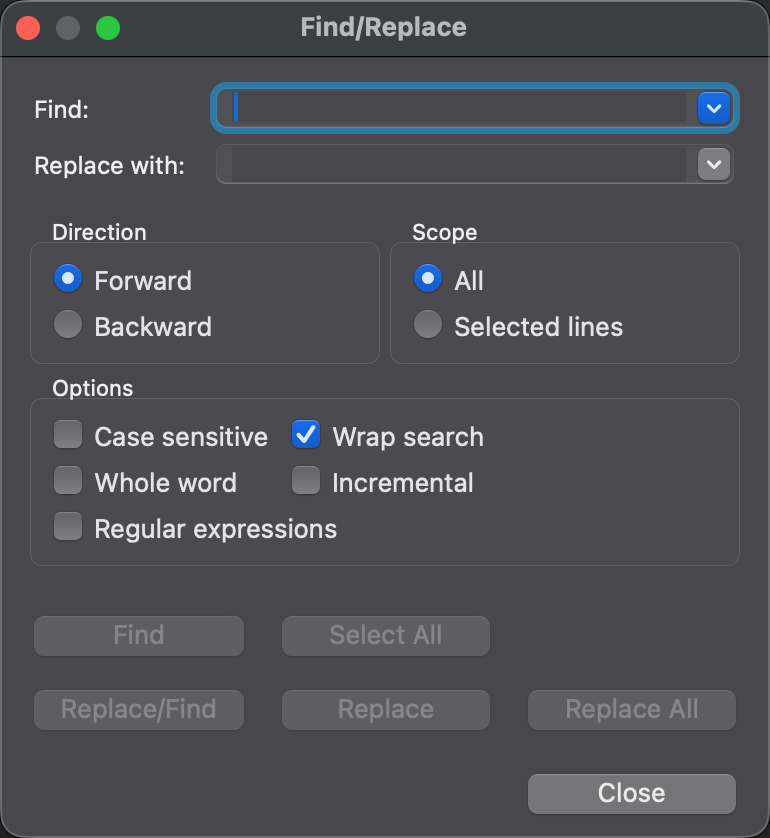
Find/Replace Dialog
- In the Find field, enter the text that you want to search for.
- Select any other options that you want.
- Click Find to find the next or the previous occurrence of the text, depending on the Direction.
To replace text, follow the same steps, and enter the replacement text in the Replace with field.
| Control | Description |
|---|---|
| Direction: Forward / Backward | Select Forward to find the next occurrence of the text, or Backward to find the previous one. |
| Scope: All / Selected lines | Select All to search the entire file, or Selected lines to search only the selected lines. |
| Case sensitive | Finds only text whose capitalization matches. |
| Wrap search | Continues from the other end of the file when the search reaches the end or the beginning. |
| Whole word | Finds whole words only. |
| Incremental | Searches as you type. |
| Regular expressions | Treats the text in the Find field as a regular expression. Click in the Find or Replace with field, then press Ctrl+Space for Content Assist with regular expression constructs. A small light bulb at the upper-left corner of a field shows that Content Assist is available there. |
| Find | Finds the next occurrence. |
| Replace/Find | Replaces the current occurrence and finds the next one. |
| Replace | Replaces the current occurrence. |
| Replace All | Replaces all occurrences. |
| Select All | Selects all occurrences. |
| Close | Closes the dialog. |
Appearance
See Also
Последна промяна на