Folder Comparison Size Filter Dialog
Use a size filter to include files in a folder comparison, or to exclude them from it, based on their size. To create one, go to Folder Comparisons > Filters, click New, and choose Size. To change one, select it and click Edit.
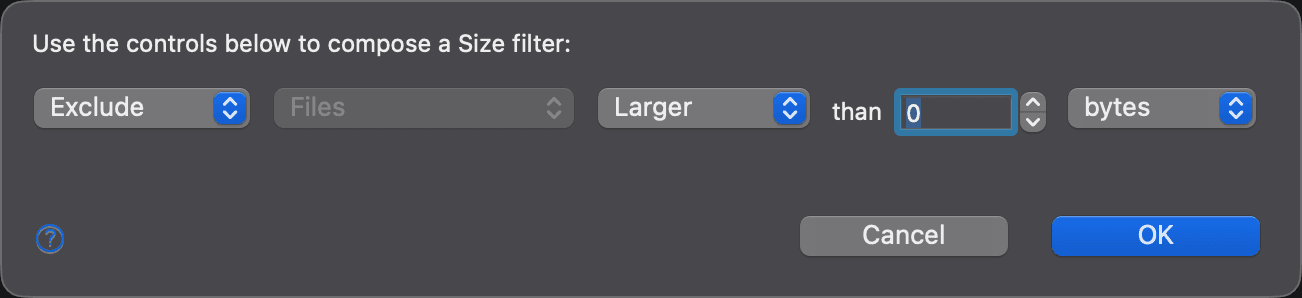
The dialog reads “Use the controls below to compose a Size filter:”, followed by a row of controls that reads as a sentence, for example Exclude Files Larger than 10 MB.
| Control | Description |
|---|---|
| Action | Exclude or Include the matching files. New filters start with Exclude. |
| Target | Always Files: size filters apply to files only. |
| Relation | Larger or Smaller than the size that follows. New filters start with Larger. |
| Size | A number from 0 to 100000. |
| Unit | bytes, KB, MB, or GB. New filters start with bytes. |
Click OK to save the filter.
Appearance
See Also
Последна промяна на